Archive

Author Archive

startup scripts for nginx

April 28th, 2009

Startup script for nginx that can be used for centos. Save the below code in a file named nginx in /etc/init.d/. Chmod its permission to 755.

Also make sure that you give the correct path for your conf file in NGINX_CONF_FILE and of the nginx binary location.


#!/bin/sh
#
# nginx - this script starts and stops the nginx daemin
#
# chkconfig:   - 85 15
# description:  Nginx is an HTTP(S) server, HTTP(S) reverse
#               proxy and IMAP/POP3 proxy server
# processname: nginx
# config:      /usr/local/nginx/conf/nginx.conf
# pidfile:     /usr/local/nginx/logs/nginx.pid

# Source function library.
. /etc/rc.d/init.d/functions

# Source networking configuration.
. /etc/sysconfig/network

# Check that networking is up.
[ "$NETWORKING" = "no" ] && exit 0

nginx="/usr/local/sbin/nginx"
prog=$(basename $nginx)

NGINX_CONF_FILE="/usr/local/nginx/conf/nginx.conf"

lockfile=/var/lock/subsys/nginx

start() {
    [ -x $nginx ] || exit 5
    [ -f $NGINX_CONF_FILE ] || exit 6
    echo -n $"Starting $prog: "
    daemon $nginx -c $NGINX_CONF_FILE
    retval=$?
    echo
    [ $retval -eq 0 ] && touch $lockfile
    return $retval
}

stop() {
    echo -n $"Stopping $prog: "
    killproc $prog -QUIT
    retval=$?
    echo
    [ $retval -eq 0 ] && rm -f $lockfile
    return $retval
}

restart() {
    configtest || return $?
    stop
    start
}

reload() {
    configtest || return $?
    echo -n $"Reloading $prog: "
    killproc $nginx -HUP
    RETVAL=$?
    echo
}

force_reload() {
    restart
}

configtest() {
  $nginx -t -c $NGINX_CONF_FILE
}

rh_status() {
    status $prog
}

rh_status_q() {
    rh_status >/dev/null 2>&1
}

case "$1" in
    start)
        rh_status_q && exit 0
        $1
        ;;
    stop)
        rh_status_q || exit 0
        $1
        ;;
    restart|configtest)
        $1
        ;;
    reload)
        rh_status_q || exit 7
        $1
        ;;
    force-reload)
        force_reload
        ;;
    status)
        rh_status
        ;;
    condrestart|try-restart)
        rh_status_q || exit 0
            ;;
    *)
        echo $"Usage: $0 {start|stop|status|restart|condrestart|try-restart|reload|force-reload|configtest}"
        exit 2
esac
VN:F [1.9.6_1107]
Rating: 6.7/10 (3 votes cast)
VN:F [1.9.6_1107]
Rating: 0 (from 0 votes)

Shijil T S linux, Webservice ,

kernel 2.6 compile steps

April 28th, 2009

I decided to compile my own kernel for my centos.Here are the steps I have followed and which worked without any errors.

Goto kernel.org for the list of kernel source available

http://kernel.org/pub/linux/kernel/v2.6/ 

Download the one you like to the directory /usr/src

If you are using wget and by chance you got disconnected and if you wanted to continue from the last point you stopped use the command with -c option

wget -c [kernelsourceurl]

You can also apply the patch which can be downloaded from this Index page of kernel source. Applying patch is little bit tricky, another interesting thing I noticed is the revert function if you have already applied the patch, here are the steps

normally patch comes in bzip or gzip format, use the command bunzip2 or gunzip to extract the patch you can also do without extracting it but lets do it straight. First goto the extracted source directory of the kernel

/usr/src/kernel-2.6

patch -p1 < .../patch-2.6  #this ../patch-2.6 is the exact path of patch file 

and in order revert the patch use the command

patch -R -p1 < ../patch-2.6

Now start the steps for compilation


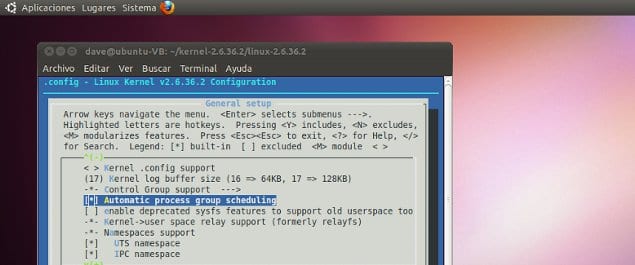
make menuconfig #select the options you want
make
make_modules
make install      #this will ensure that bzImage is copied, initrd image is made and the grub.conf is edited.

In order to boot the new kernel you need to edit default=0 in grub.conf but since you are unsure that it will work or not you can do a workaround to boot your compiled only once, that means in the next boot if the compiled kernel didn’t comes up you again do a reboot and then the previous kernel will be loaded.

Issue following commands

grub --no-floppy

and at the grub prompt

grub>savedefault --default=0 --once

If the new kernel boots up without any error you can edit the grub.conf to make this new kernel as the default one permanently.

VN:F [1.9.6_1107]
Rating: 5.8/10 (6 votes cast)
VN:F [1.9.6_1107]
Rating: 0 (from 0 votes)

Shijil T S general, linux ,

Using FreeBSD ports and packages

April 11th, 2009

FreeBsd Ports/Packages

New to FreeBsd and only familiar with RPM ? This will article will guide you through how to install third-party applications and system tools using ports and packages

Ports

Port is a technology used to install from source.

Each Port is a collection of scripts that when executed, automatically download source of softwares from the Internet, patches, configures if necessary, compiles and install it. Any dependencies on other applications or libraries a port may have are also installed for the user.

Each port, or software package, is maintained by a “port maintainer”, an individual who is responsible for staying current with the latest software developments. Anyone is welcome to become a port maintainer by contributing their favorite piece of software to the collection. One may also choose to adopt and maintain an existing port that has no maintainership.

Packages

Packages is another techInology used to install from pre-built binaries.
For any given application, the FreeBSD package for that application is a single file which you must download. The package contains pre-compiled copies of all the commands for the application, as well as any configuration files or documentation. A downloaded package file can be manipulated with FreeBSD package management commands, such as pkg_add, pkg_delete, pkg_info, and so on. Installing a new application can be carried out with a single command.

Both packages and ports understand dependencies. Suppose you want to install an application that depends on a specific library being installed. Both the application and the library have been made available as FreeBSD ports and packages. If you use the pkg_add command or the ports system to add the application, both will notice that the library has not been installed, and automatically install the library first.

Given that the two technologies are quite similar, you might be wondering why FreeBSD bothers with both. Packages and ports both have their own strengths, and which one you use will depend on your own preference.

Find your application to Install

Suppose you want to install lsof using port
If you know the exact name of the port, but just need to find out which category it is in, you can use the whereis command. Simply type whereis file, where file is the program you want to install. If it is found on your system, you will be told where it is, as follows:


# whereis lsof

lsof: /usr/ports/sysutils/lsof

This tells us that lsof (a system utility) can be found in the
/usr/ports/sysutils/lsof directory.

Yet another way to find a particular port is by using the Ports Collection’s built-in search mechanism. To use the search feature, you will need to be in the /usr/ports directory. Once in that directory, run make search name=program-name where program-name is the name of the program you want to find. For example, if you were looking for lsof:


# cd /usr/ports

# make search name=lsof

Port:   lsof-4.56.4

Path:   /usr/ports/sysutils/lsof

Info:   Lists information about open files (similar to fstat(1))

Maint:  obrien@FreeBSD.org

Index:  sysutils

B-deps:

R-deps:

For in-depth searching you can also use make search key=string where string is some text to search for. This searches port names, comments, descriptions and dependencies and can be used to find ports.

To begin, change to the directory for the port you want to install:


# cd /usr/ports/sysutils/lsof

Once inside the lsof directory, you will see the port skeleton. The next step is to compile, or “build”, the port. This is done by simply typing make at the prompt. Once you have done so, you should see something like this:


# make

>> lsof_4.57D.freebsd.tar.gz doesn't seem to exist in /usr/ports/distfiles/.

>> Attempting to fetch from ftp://lsof.itap.purdue.edu/pub/tools/unix/lsof/.

===>  Extracting for lsof-4.57

...

[extraction output snipped]

...

>> Checksum OK for lsof_4.57D.freebsd.tar.gz.

===>  Patching for lsof-4.57

===>  Applying FreeBSD patches for lsof-4.57

===>  Configuring for lsof-4.57

...

[configure output snipped]

...

===>  Building for lsof-4.57

...

[compilation output snipped]

Notice that once the compile is complete you are returned to your prompt. The next step is to install the port. In order to install it, you simply need to tack one word onto the make command, and that word is install:


# make install

===>  Installing for lsof-4.57

...

[installation output snipped]

...

===>   Generating temporary packing list

===>   Compressing manual pages for lsof-4.57

===>   Registering installation for lsof-4.57

===>  SECURITY NOTE:

      This port has installed the following binaries which execute with

      increased privileges.

It is always good idea to delete the working directory.


# make clean

===>  Cleaning for lsof-4.57

Note: You can save two extra steps by just running “make install clean” instead of make, make install and make clean as three separate steps.
This is how you install a utility using ports now you need to know more about Packages before we proceed with Ports.

How to use Package system

Install a package

You can use the pkg_add utility to install a FreeBSD software package from a local file or from a server on the network.


# pkg_add -r lsof

This will cause the utility to automatically determine the correct object format and release and then fetch and install the package from an FTP site. If you want to some alternative FreeBSD Packages Mirror, instead of the main distribution site, you have to set PACKAGESITE accordingly.
It is possible to change this behavior by overriding the PACKAGESITE environment variable. For example, if you run a FreeBSD 5.4-RELEASE system, by default pkg_add will try to fetch packages from


ftp://ftp.freebsd.org/pub/FreeBSD/ports/i386/packages-5.4-release/Latest/. If you want to force pkg_add to download FreeBSD 5-STABLE packages,
set PACKAGESITE to ftp://ftp.freebsd.org/pub/FreeBSD/ports/i386/packages-5-stable/Latest/

Managing Packages


pkg_info is a utility that lists and describes the various packages installed.

cvsup-16.1          A general network file distribution system optimized for CV

docbook-1.2         Meta-port for the different versions of the DocBook DTD

pkg_version is a utility that summarizes the versions of all installed packages. It compares the package version to the current version found in the ports tree.

The symbols in the second column indicate the relative age of the installed version and the version available in the local ports tree.

Symbol Meaning

= The version of the installed package matches the one found in the local ports tree.

The installed version is newer than the one found in the local ports tree.

(The local ports tree is probably out of date.)

? The installed package cannot be found in the ports index.

(This can happen, for instance, if an installed port is removed from the Ports Collection or renamed.)

* There are multiple versions of the package.

Deleting a Package

To remove a previously installed software package, use the pkg_delete utility.


# pkg_delete xchat-1.7.1

Now lets come again to Ports, below are the steps to obtain Ports if its not installed in the machine.

Obtaining the Ports Collection.

Before you can install ports, you must first obtain the Ports Collection–which is essentially a set of Makefiles, patches, and description files placed in /usr/ports.

When installing your FreeBSD system, sysinstall asked if you would like to install the Ports Collection. If you chose no, you can follow these instructions to obtain the ports collection:

CVSup Method

This is a quick method for getting and keeping your copy of the Ports Collection up to date using CVSup. If you want to learn more about CVSup, see Using CVSup.

Make sure /usr/ports is empty before you run CVSup for the first time! If you already have the Ports Collection present, obtained from another source, CVSup will not prune removed patch files.

Install the net/cvsup-without-gui package:


#pkg_add -r cvsup-without-gui

#cvsup -L 2 -h cvsup.FreeBSD.org /usr/share/examples/cvsup/ports-supfile

Change cvsup

FreeBSD.org to a CVSup server near you. See CVSup Mirrors for a complete listing of mirror sites. Note: One may want to use his own ports-supfile, for example to avoid the need of passing the CVSup server on the command line.


1. In this case, as root, copy /usr/share/examples/cvsup/ports-supfile to a new location,

such as /root or your home directory.

2. Edit ports-supfile.

3. Change CHANGE_THIS.FreeBSD.org to a CVSup server near you.

4. And now to run cvsup, use the following:

# cvsup -L 2 /root/ports-supfile

3. Running the cvsup command later will download and apply all the recent changes to your Ports Collection,

except actually rebuilding the ports for your own system.

Portsnap Method

Portsnap is an alternative system for distributing the Ports Collection. It was first included in FreeBSD 6.0. On older systems, you can install it from sysutils/portsnap package:


# pkg_add -r portsnap

1. Since FreeBSD 6.1-RELEASE and with recent versions of the Portsnap port or package, you can safely skip this step. The /usr/ports will be created automatically at first use of the portsnap command. With previous versions of Portsnap, you will have to create an empty directory /usr/ports if it does not exists:

2. Download a compressed snapshot of the Ports Collection into /var/db/portsnap. You can disconnect from the Internet after this step, if you wish.


# portsnap fetch

3. If you are running Portsnap for the first time, extract the snapshot into /usr/ports:


# portsnap extract

If you already have a populated /usr/ports and you are just updating, run the following command instead:


# portsnap update

Sysinstall Method

This method involves using sysinstall to install the Ports Collection from the installation media. Note that the old copy of Ports Collection from the date of the release will be installed. If you have Internet access, you should always use one of the methods mentioned above.


1. As root

# sysinstall

2. Scroll down and select Configure, press Enter.

3. Scroll down and select Distributions, press Enter.

4. Scroll down to ports, press Space.

5. Scroll up to Exit, press Enter.

6. Select your desired installation media, such as CDROM, FTP, and so on.

7. Scroll up to Exit and press Enter.

8. Press X to exit sysinstall

Installing using Ports

The Ports Collection makes an assumption that you have a working Internet connection. If you do not, you will need to put a copy of the distfile into /usr/ports/distfiles manually.

In some rare cases, users may need to acquire the tarballs from a site other than the MASTER_SITES (the location where files are downloaded from). You can override the MASTER_SITES option with the following command:


# cd /usr/ports/directory

# make MASTER_SITE_OVERRIDE=ftp://ftp.FreeBSD.org/pub/FreeBSD/ports/distfiles/ fetch

Removing Installed Ports


# pkg_delete lsof-4.57
Upgrading Ports
 # pkg_version -v

Before attempting a port upgrade, you should check /usr/ports/UPDATING

Upgrade Ports using Portupgrade

The portupgrade utility is designed to easily upgrade installed ports. It is available from the sysutils/portupgrade port. Install it like any other port, using the make install clean command:


# cd /usr/ports/sysutils/portupgrade

# make install clean

Scan the list of installed ports with the pkgdb -F command and fix all the inconsistencies it reports. It is a good idea to do this regularly, before every upgrade.

When you run portupgrade -a, portupgrade will begin to upgrade all the outdated ports installed on your system. Use the -i flag if you want to be asked for confirmation of every individual upgrade.


# portupgrade -ai

If you want to upgrade only a certain application, not all available ports, use portupgrade pkgname. Include the -R flag if portupgrade should first upgrade all the ports required by the given application.


# portupgrade -R firefox,

To use packages instead of ports for installation, provide -P flag. With this option portupgrade searches the local directories listed in PKG_PATH, or fetches packages from remote site if it is not found locally. If packages can not be found locally or fetched remotely, portupgrade will use ports. To avoid using ports, specify -PP.


# portupgrade -PR gnome2

To just fetch distfiles (or packages, if -P is specified) without building or installing anything, use -F

Upgrading Ports using Portmanager

Portmanager is another utility for easy upgrading of installed ports. It is available from the sysutils/portmanager port:


# cd /usr/ports/sysutils/portmanager

# make install clean

All the installed ports can be upgraded using this simple command:


# portmanager -u

You can add the -ui flag to get asked for confirmation of every step Portmanager will perform. Portmanager can also be used to install new ports on the system. Unlike the usual make install clean command, it will upgrade all the dependencies prior to building and installing the selected port.


# portmanager x11/gnome2

If there are any problems regarding the dependencies for the selected port, you can use Portmanager to rebuild all of them in the correct order. Once finished, the problematic port will be rebuilt too.


# portmanager graphics/gimp -f

Ports and Disk Space

Using the Ports Collection will use up disk space over time. After building and installing software from the ports, you should always remember to clean up the temporary work directories using the make clean command. You can sweep the whole Ports Collection with the following command:


# portsclean -C

You will accumulate a lot of old source distribution files in the distfiles directory over time. You can remove them by hand, or you can use the following command to delete all the distfiles that are no longer referenced by any ports:


# portsclean -D

Or to remove all distfiles not referenced by any port currently installed on your system:


# portsclean -DD

Note: The portsclean utility is part of the portupgrade suite.

Post Installation

To know more about the package you have installed now.


# pkg_info -L newpackage-1.0.0 | less

# pkg_info | grep -i newpackage

If the application has a web site, check it for additional documentation, frequently asked questions, and so forth. If you are not sure of the web site address it may be listed in the output from


# pkg_info newpackage-1.0.0
VN:F [1.9.6_1107]
Rating: 7.0/10 (1 vote cast)
VN:F [1.9.6_1107]
Rating: 0 (from 0 votes)

Shijil T S Articles, linux

virtuozzo ostemplate creation

April 3rd, 2009

There might be plenty of reasons why you want to have custom ostemplate

Here is the method you can create it, assuming that you have already installed a ostemplate in your node and its name is centOS

cp -rpf /vz/template/centOS /vz/template/centOScustom

It will take some minutes

now traverse through the directories until you reach the folder named “default”

cd /vz/template/centOScustom/5/x86/config/os/default

There you can customize the files

description
distribution
repositories
packages
summary

Now if you issue the command vzpkg list -O

you will see the name centOScustom

Time to create the pkg cache

vzpkg create cache centOScustom-5-x86

This will create a tar file in /vz/template/cache/centOScustom-5-x86.tar.gz

create a vps with our new template

vzctl create 222 --ostemplate centOScustom-5-x86 --ipadd youripaddress 
 vzctl start 222 

Good to go now..

VN:F [1.9.6_1107]
Rating: 10.0/10 (4 votes cast)
VN:F [1.9.6_1107]
Rating: +1 (from 1 vote)

Shijil T S linux, virtualization , ,

Twitter update via shell Script

February 17th, 2009

Hope everyone is familiar with twitter if you still don’t check twitter.com

Twitter can be used to check updates online and its a great people to get updates online.

Save the code in twitter.sh


#!/bin/bash

read -p "Give your input : " -e input

curl –-basic –-user username:password –-data status="$input"
http://twitter.com/statuses/update.xml > /dev/null

echo “OK”


username and password should be edited to that of your twitter account.

Make sure you have curl installed in the server.

yum -y install curl

Now execute the script

sh twitter.sh

It will ask “Give your input :”

Enter your update it should be less than 140 characthers.

Enjoy twittering

Jim

SparkSupport

VN:F [1.9.6_1107]
Rating: 10.0/10 (1 vote cast)
VN:F [1.9.6_1107]
Rating: 0 (from 0 votes)

Shijil T S general, linux ,

Postgresql Command line Tips

August 16th, 2008

PostgreSQL is an object-relational database management system (ORDBMS) based on POSTGRES, Version 4.2, developed at the University of California at Berkeley Computer Science Department. POSTGRES pioneered many concepts that only became available in some commercial database systems much later.

PostgreSQL is an open-source descendant of this original Berkeley code. It supports a large part of the SQL standard and offers many modern features:

  • complex queries
  • foreign keys
  • triggers
  • views
  • transactional integrity
  • multiversion concurrency control

You can login to shell by


# su - postgres

bash$

How to create a database

Normally, the database user who executes this command becomes the owner of the new database. However a different owner can be specified via the -O option, if the executing user has appropriate privileges.


bash$ createdb sparksuppport

CREATE USER

Accessing a Database

Once you have created a database, you can access it by running the PostgreSQL interactive terminal program, called psql, which allows you to interactively enter, edit, and execute SQL commands.


bash$ psql sparksupport

Welcome to psql 8.0.13, the PostgreSQL interactive terminal.

Type:  \copyright for distribution terms

       \h for help with SQL commands

       \? for help with psql commands

       \g or terminate with semicolon to execute query

       \q to quit

sparksupport=>

Creating a User

createuser creates a new PostgreSQL user. Only superusers (users with usesuper set in the pg_shadow table) can create new PostgreSQL users, so createuser must be invoked by someone who can connect as a PostgreSQL superuser.

Being a superuser also implies the ability to bypass access permission checks within the database, so superuserdom should not be granted lightly.


bash$ createuser spark

Shall the new user be allowed to create databases? (y/n) n

Shall the new user be allowed to create more new users? (y/n) n

Dropping a database


bash$ dropdb sparksupport

DROP DATABASE

Dropping a User


bash$ dropuser spark

DROP USER

Creating, Dropping Groups

Currently, there is no easy interface to set up user groups. You have to explicitly insert/update the pg_group table. For example.


# su - postgres

bash$ psql sparksupport

..... in psql press up/down arrow keys for history line editing or \s

sparksupport=> insert into pg_group (groname, grosysid, grolist)

sparksupport=> values ('hackers', '1234', '{5443, 8261}' );

INSERT 58224

sparksupport=> grant insert on foo to group hackers;

CHANGE

To drop the group


# su - postgres

bash$ psql sparksupport

sparksupport=> delete from pg_group where groname = 'hackers';

Backup and Restore database

pg_dump is a utility for backing up a PostgreSQL database. It makes consistent backups even if the database is being used concurrently. pg_dump does not block other users accessing the database (readers or writers).

To dump a database:


bash$ pg_dump sparksupport > db.out

To reload this database:


bash$ psql -d newdatabasename -f db.out

or

bash$ cat db.out | psql newdatabasename

To dump all databases


bash$ man pg_dumpall

bash$ pg_dumpall -o > db_all.out
To reload (restore) all databases dumped with pg_dumpall:
bash$ psql -e template1 < db_all.out
Backup large databases

To dump a database called sparksupport that contains large objects to a tar file:


bash$ pg_dump -Ft -b sparksupport > db.tar
Reload with :
bash$ createdb

bash$ gunzip -c filename.dump.gz | psql

Or

bash$ cat filename.dump.gz | gunzip | psql

Use split:


bash$ pg_dump  | split -b 1m - filename.dump.

Note: There is a dot (.) after filename.dump in the above command!!

You can reload with:


bash$ man createdb

bash$ createdb

bash$ cat filename.dump.* | pgsql

For further referrence http://www.postgresql.org/docs/8.0/static/index.html

VN:F [1.9.6_1107]
Rating: 0.0/10 (0 votes cast)
VN:F [1.9.6_1107]
Rating: 0 (from 0 votes)

Shijil T S Articles, linux ,

Linux Fail-over Clustering

March 24th, 2008

To all those who needs uninterrupted webservice here is an article that describes basic settings of how it can be done using linux servers.

For this purpose we can use any Red-Hat distribution and another utility called Heartbeat.

The heartbeat service provides the basic functions required for the HA system. In a cluster environment, a high availability (HA) system is responsible for starting and stopping services, mounting and dismounting resources, monitoring the system availability in the cluster environment, and handling the ownership of the virtual IP address that’s shared between cluster nodes.

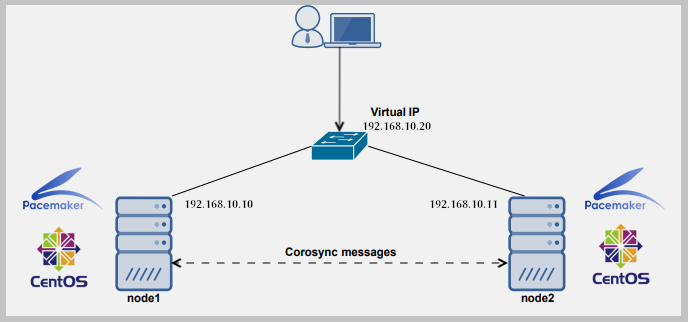
The most common cluster configuration is called standby configuration, as described here. In the standby cluster configuration, one node performs all the work while the other node is idle. Heartbeat monitors health of particular service(s) usually through a separate Ethernet interface used only for HA purposes using special ping. If a node fails for some reason, heartbeat transfers all the HA components to the healthy node. When the node recovers, it can resume its former status.

Installing and Configuring

First of all install heartbeat in a centos machine.


yum install -y heartbeat

To test High Availability Linux, you need a second Ethernet adapter devote to heartbeat on each nodes. Install the Apache Web server and the heartbeat program on both nodes.

The configuration files for heartbeat are not in place when the software is installed. You need to copy them from the documentation folder to the /etc/ha.d/ folder:


cp /usr/share/doc/heartbeat*/ha.cf /etc/ha.d/

cp /usr/share/doc/heartbeat*/haresources /etc/ha.d/

cp /usr/share/doc/heartbeat*/authkeys /etc/ha.d/

Imagine you have two servers in a famous Datacenter and owns few public IP’s. In the /etc/hosts file you must add hostnames and IP addresses to let the two nodes see each other. In my case it looks like this:


201.200.100.1 node1.sparksupport.com    node1

201.200.100.2 node2.sparksupport.com    node2

127.0.0.1   localhost.localdomain     localhost

The two nodes will have same gateway IP and that will be set by Datacenter. For our example let node1 be primary and node2 backup or secondary. The primary will run an extra IP address (assigned using IP aliasing) and with that IP you will have to configure your webserver. Now configure these IP’s on eth0 and eth1 can be configured with private IP address for the use of hearbeat. The node1 and node2 should be connected using a crossover cable across these second Ethernet Card eth1.
Now ifconfig on node1 should provide following results.


eth0      inet addr:201.200.100.1  Bcast:201.200.100.255  Mask:255.255.255.0

          UP BROADCAST RUNNING MULTICAST  MTU:1500  Metric:1

          RX packets:18617 errors:0 dropped:0 overruns:0 frame:0

          TX packets:14682 errors:0 dropped:0 overruns:0 carrier:0

          collisions:3 txqueuelen:100

          Interrupt:10 Base address:0x6800

eth0:0    Link encap:Ethernet  HWaddr 00:60:97:9C:52:28

          inet addr:201.200.100.5  Bcast:201.200.100.255 Mask:255.255.255.0

          UP BROADCAST RUNNING MULTICAST  MTU:1500  Metric:1

          Interrupt:10 Base address:0x6800

eth1      Link encap:Ethernet  HWaddr 00:60:08:26:B2:A4

          inet addr:192.168.1.2  Bcast:192.168.1.255  Mask:255.255.255.0

          UP BROADCAST RUNNING MULTICAST  MTU:1500  Metric:1

          RX packets:15673 errors:0 dropped:0 overruns:0 frame:0

          TX packets:17550 errors:0 dropped:0 overruns:0 carrier:0

          collisions:2 txqueuelen:100

          Interrupt:10 Base address:0x6700

lo        Link encap:Local Loopback

          inet addr:127.0.0.1  Mask:255.0.0.0

          UP LOOPBACK RUNNING  MTU:3924  Metric:1

          RX packets:38 errors:0 dropped:0 overruns:0 frame:0

          TX packets:38 errors:0 dropped:0 overruns:0 carrier:0

          collisions:0 txqueuelen:0

And ifconfig on node2 should provide the following results.


eth0      inet addr:201.200.100.2  Bcast:201.200.100.255  Mask:255.255.255.0

          UP BROADCAST RUNNING MULTICAST  MTU:1500  Metric:1

          RX packets:18617 errors:0 dropped:0 overruns:0 frame:0

          TX packets:14682 errors:0 dropped:0 overruns:0 carrier:0

          collisions:3 txqueuelen:100

          Interrupt:10 Base address:0x6800

eth1      Link encap:Ethernet  HWaddr 00:60:08:26:B2:A4

          inet addr:192.168.1.3  Bcast:192.168.1.255  Mask:255.255.255.0

          UP BROADCAST RUNNING MULTICAST  MTU:1500  Metric:1

          RX packets:15673 errors:0 dropped:0 overruns:0 frame:0

          TX packets:17550 errors:0 dropped:0 overruns:0 carrier:0

          collisions:2 txqueuelen:100

          Interrupt:10 Base address:0x6700

lo        Link encap:Local Loopback

          inet addr:127.0.0.1  Mask:255.0.0.0

          UP LOOPBACK RUNNING  MTU:3924  Metric:1

          RX packets:38 errors:0 dropped:0 overruns:0 frame:0

          TX packets:38 errors:0 dropped:0 overruns:0 carrier:0

          collisions:0 txqueuelen:0

We will have to edit three more files and these files should be exactly the same in both nodes.


/etc/ha.d/ha.cf

/etc/ha.d/haresources

/etc/ha.d/authkeys

Next, modify the configuration file /etc/ha.d/ha.cf. Edit the following entries in order to get heartbeat to work:


logfile /var/log/ha-log         #where to log everything from heartbeat

logfacility     local0          #Facility to use for syslog/logger

keepalive 2                     # the time between the heartbeats

deadtime 30                     #how long until the host is declared dead

warntime 10                     #how long before issuing "late heartbeat" warning

initdead 120                    # Very first dead time (initdead)

udpport 694                     #udp port for the bcast/ucast communication

bcast   eth1                    #on what interface to broadcast

ucast eth1 192.168.1.1          #this is a 2-node cluster, so no need to use multicast here

auto_failback on                #we want the resources to automatically fail back to its primary node

node  node1.sparksupport.com    #the name of the first node

node  node2.sparksupport.com    #the name of the second node

The ucast in node2 should be ucast eth1 192.168.1.2

The next file is /etc/ha.d/haresources with the following entry


node1.sparksupport.com 201.200.100.5 httpd

The last heartbeat-related file is /etc/ha.d/authkeys with the entry.


auth 1

1 crc

The file should be readable only by root user for security reasons


chmod 600 /etc/ha.d/authkeys 

Now configure httpd.conf with the public IP address.


Listen 201.200.100.5:

DocumentRoot "/home/spark/www"

It’s important for the Apache service to not start automatically at boot time, since heartbeat will start and stop the service as needed. Disable the automatic start with the command (on a Red Hat-based system):


chkconfig httpd remove

Make sure you have the same Apache configuration on both nodes.

Testing Fail-over cluster

At this point we’re done with configuration. Now it’s time to start the newly created cluster. Start the heartbeat service on both nodes:


/etc/init.d/heartbeat start

Watch the /var/log/ha-log on both nodes. If everything is configured correctly, you should see something like this in your log files:


Configuration validated. Starting heartbeat 1.2.3.cvs.20050927

heartbeat: version 1.2.3.cvs.20050927

Link node1.sparksupport.com:eth1 up.

Link node2.sparksupport.com:eth1 up.

Status update for node node2.sparksupport.com: status active

Local status now set to: 'active'

remote resource transition completed.

Local Resource acquisition completed. (none)

node2.example.com wants to go standby [foreign]

acquire local HA resources (standby).

local HA resource acquisition completed (standby).

Standby resource acquisition done [foreign].

Initial resource acquisition complete (auto_failback)

remote resource transition completed.

Now test the failover. Reboot the master server. The slave should take over the Apache service. If everything works well, you should see something like this:


Received shutdown notice from 'node1.sparksupport.com'.

Resources being acquired from node1.sparksupport.com.

acquire local HA resources (standby).

local HA resource acquisition completed (standby).

Standby resource acquisition done [foreign].

Running /etc/ha.d/rc.d/status status

Taking over resource group 201.200.100.5

Acquiring resource group: node1.sparksupport.com 201.200.100.5 httpd

mach_down takeover complete for node node1.sparksupport.com

node node1.sparksupport.com: is dead

Dead node node1.sparksupport.com gave up resources.

Link node1.sparksupport.com:eth1 dead.

And when the master comes back online again, he should take over the Apache service:


Heartbeat restart on node node1.sparksupport.comheartbeat

Link node1.sparksupport.com:eth1 up.

node2.sparksupport.com wants to go standby [foreign]

standby: node1.sparksupport.com can take our foreign resources

give up foreign HA resources (standby).

Releasing resource group: node1.sparksupport.com 201.200.100.5 httpd

Local standby process completed [foreign].

remote resource transition completed.

Other node completed standby takeover of foreign resources.

Conclusion

This is a basic setup you can increase the number of services. You should sync the data in primary and secondary nodes.

VN:F [1.9.6_1107]
Rating: 5.3/10 (4 votes cast)
VN:F [1.9.6_1107]
Rating: +2 (from 2 votes)

Shijil T S Articles, linux ,

How to: Ruby on Rails Installation and Configuration

November 28th, 2007

This article will guide you through the installation of Ruby on Rails in a linux machine. As you are aware Ruby on Rails made a splash with its simplicity and ease of use for devoloping web applications.

What is Ruby?

Ruby is a pure object-oriented programming language with a super clean syntax that makes programming elegant and fun. Ruby successfully combines Smalltalk’s conceptual elegance, Python’s ease of use and learning, and Perl’s pragmatism. Ruby originated in Japan in the early 1990s, and has started to become popular worldwide in the past few years as more English language books and documentation have become available.

What is Rails?

Rails is an open source Ruby framework for developing database-backed web applications. Rails is designed from the ground up to create dynamic Web sites that use a relational database backend. It adds key words to the Ruby programming language that make Web applications easier to configure. In addition, it’s designed to automatically generate a complete, if somewhat crude, Web application from an existing database schema. The latter is both Ruby’s greatest strength and its Achilles’ heel. Rails makes assumptions about database schema naming conventions that, if followed, make generating a basic Web site a matter of executing single command.

Installing the Software on CentOS

1. Install Ruby

Need to install the testing repository so add a file named “testing” to the directory /etc/yum.repos.d/ That will allow you to rock ruby 1.8.4.


# packages in testing

[testing]

name=CentOS-$releasever - Testing

baseurl=http://dev.centos.org/centos/$releasever/testing/$basearch/

gpgcheck=1

enabled=1

gpgkey=http://dev.centos.org/centos/RPM-GPG-KEY-CentOS-testing

Now you can use yum to install ruby
yum update

yum install ruby ruby-devel ruby-libs irb rdoc

2. Install Gem


cd /usr/local/src

wget http://rubyforge.org/frs/download.php/5207/rubygems-0.8.11.tgz

tar -xvzf rubygems-0.8.11.tgz

cd rubygems-0.8.11

ruby setup.rb

cd ..

3. Install fast-cgi


cd /usr/local/src

wget http://www.fastcgi.com/dist/fcgi-2.4.0.tar.gz

tar xzvf fcgi-2.4.0.tar.gz

cd fcgi-2.4.0

./configure

make

make install

cd ..

4. Install fast-cgi Bindings


cd /usr/local/src

wget http://sugi.nemui.org/pub/ruby/fcgi/ruby-fcgi-0.8.6.tar.gz

tar zxvf ruby-fcgi-0.8.6.tar.gz

cd ruby-fcgi-0.8.6

ruby install.rb config

ruby install.rb setup

ruby install.rb install

cd ..

5. Install Rails

gem install rails –include-dependencies

Ruby and Rails on Red Hat Enterprise Linux

Make sure you have installed zlib-devel installed otherwise Gem will fail.
up2date zlib-devel

First you need to install ruby installed using rpm’s from the machine.
To determine which all rpm’s installed


rpm -qa | egrep '(ruby)|(irb)'

To uninstall the installed ruby rpm’s


rpm -e ruby-docs-1.8.1-7.EL4.2 \

ruby-1.8.1-7.EL4.2 \

irb-1.8.1-7.EL4.2 \

ruby-libs-1.8.1-7.EL4.2 \

ruby-mode-1.8.1-7.EL4.2 \

ruby-tcltk-1.8.1-7.EL4.2 \

ruby-devel-1.8.1-7.EL4.2

Install Ruby from source


wget ftp://ftp.ruby-lang.org/pub/ruby/stable/ruby-1.8.4.tar.gz

tar xvzf ruby-1.8.4.tar.gz

cd ruby-1.8.4

./configure --prefix=/usr

make

make install

Install Ruby Gems


wget http://rubyforge.org/frs/download.php/5207/rubygems-0.8.11.tgz

tar xvzf rubygems-0.8.11.tgz

cd rubygems-0.8.11

ruby setup.rb

Install Rails


cd

gem update

gem update --system

rm `gem env gempath`/source_cache

rm -f ~/.gem/source_cache

gem update

gem install rails --include-dependencies

Now configuring mod_fastcgi Apache (1.3) config file httpd.conf

1. Install mod_fcgi module


curl -O http://fastcgi.com/dist/mod_fastcgi-2.4.2.tar.gz

or


wget http://fastcgi.com/dist/mod_fastcgi-2.4.2.tar.gz

tar xvfz mod_fastcgi-2.4.2.tar.gz

cd mod_fastcgi-2.4.2

/usr/local/apache/bin/apxs -cia mod_fastcgi.c

2. Configuring httpd.conf


LoadModule fastcgi_module modules/mod_fastcgi.so

AddHandler fastcgi-script .fcgi .fcg .fpl

service httpd restart

3. Edit the .htaccess file


change /dispatch.cgi to /dispatch.fcgi

4. This server has been upgraded to MySQL 4.1

The default Ruby mysql driver will not connect because it is running in old_password compatibility mode (otherwise Ensim cannot connect). In order to fix it we need to reinstall the mysql-ruby client


wget http://www.tmtm.org/en/mysql/ruby/mysql-ruby-2.5.tar.gz

tar vxzf mysql-ruby-2.5.tar.gz

cd mysql-ruby-2.5

ruby extconf.rb --with-mysql-config=/usr/bin/mysql_config

5. Edit your .htaccess with following entries


#Set to development, test, or production

DefaultInitEnv RAILS_ENV production

 Options Indexes ExecCGI FollowSymLinks

RewriteEngine On

RewriteRule ^$ index.html [QSA]

RewriteRule ^([^.]+)$ $1.html [QSA]

RewriteCond %{REQUEST_FILENAME} !-f

RewriteRule ^(.*)$ dispatch.fcgi [QSA,L]
VN:F [1.9.6_1107]
Rating: 0.0/10 (0 votes cast)
VN:F [1.9.6_1107]
Rating: 0 (from 0 votes)

Shijil T S Articles, general, linux ,

System Admin Tools Part 11

August 18th, 2007

Now I am going introduce you to a set of commands that may come handy

FIND

find -perm 777 -type d -exec chmod 755 {} \;   #Command to change all the folders under present directory with 777 to 755

find -perm 755 -type f -exec chmod 644 {} \;   #Command to change all the folders under present directory with 755 to 644

find -type d -maxdepth 3 -exec cp file {} \;   #Copy file to 3 levels of directories below the present directory

find . -name "*.trn" -ctime +3 -exec rm -f {} \;  #Forcible remove files with .trn extension and 3 days old.

find . -cmin -5   #Find all files created or updated in the last five minutes:

(Great for finding effects of make install)

LS


ls -lSh        #List files by their size

ls -ltr        #List files by date

ls -F          #Appends a symbol after files and directories

RSYNC


rsync -e ssh -az /currentdirectory IP:/remotedirectory  #Sync remote directory with our current directory.

rsync --bwlimit=1000 fromfile tofile                    #Locally copy with rate limit

GPG


gpg -c file                                             #Encrypt file

gpg file.gpg                                            #Decrypt file

DF


du -h --max-depth 1             #Show disk space used by all the files and directories.

du -s * | sort -k1,1rn | head   #Show top disk users in current directory.

df -h                           #Show free disk space

df -i                           #Show free inodes

Add system swap space for virtual memory paging

Swap space may be a swap partition, a swap file or a combination of the two. One should size swap space to be at least twice the size of the computer’s RAM. (but less than 2GB)


dd if=/dev/zero of=/swapfile bs=1024 count=265032 - #Create file filled with zeros of size 256Mb

mkswap /swapfile                                    #Create swap file

swapon /swapfile                                    #Begin use of given swap file.

Assign a priority with the “-p” flag.


swapon -s                                           #List swap files

scat /proc/swaps                                    #Same as above

This example refers to a swap file. One may also use a swap partition.
Make entry to /etc/fstab to permanently use swap file or partition.


/swapfile               swap                    swap    defaults        0 0

Note: To remove the use of swap space, use the command swapoff. If using a swap partition, the partition must be unmounted.

Debugging Tools


strace -c ls >/dev/null                 #Summarise/profile system calls made by command

strace -f -e open ls>/dev/null         #List system calls made by
command

ltrace -f -e getenv ls >/dev/null       #List library calls made by command

lsof -p $$                              #List paths that process id has open

lsof -p PID                             #List paths PID has open

lsof ~                                  #List processes that have specified path open

last reboot                             #Indicates last reboot time

renice +15 PID #To give lower priority for a PID -19 is highest and +20 is lowest

To check number of IP’s connecting to port 80


netstat -tanpu |grep :80 |awk {'print $5'} |cut -d: -f1 |sort -n |uniq -c

tcpdump not port 22                     #To show network traffic except on port 22

Perl Administration

Installation of perl module can be done from tar file.


tar xzf yourmodule.tar.gz               #Untar Module

perl Makefile.PL                        #Build with PERL makefile:

make

make install                            #Install

You can also do this from cpan shell

perl -MCPAN -e shell                    #First time through it will ask questions Answer "no" to the first question for

autoconfigure

cpan> install URI

cpan> i /PerlMagick/                    #Inquire about module. (Search by keyword)

Distribution    J/JC/JCRISTY/PerlMagick-5.36.tar.gz

Module          Image::Magick   (J/JC/JCRISTY/PerlMagick-5.36.tar.gz)

cpan> install Image::Magick

cpan>force install Image::Magick       #Install a module forcefully.

YUM :RPM Updater

YUM (Yellowdog Updater, Modified) is a client command line application for updating an RPM based system from an internet repository (YUM “yum-arch” server) accessible by URL (http://xxx, ftp://yyy or even file://zzz local or NFS)

yum -y install package-name            #To install a package along with its dependencies

yum remove package-name                 #To remove package

yum list                                #To list available packages version and state

yum list extras                         #To list packages not available in repositories but listed in config file

yum list obsoletes                      #To list packages which are obsoleted by repositories

yum clean all                           #To list packages which are obsoleted by packages in yum repository

yum update                              #Update all packages on your system

yum update package-name                 #Update a package

yum update package-name-prefix\*        #Update all with same prefix

You can add new repos in /etc/yum.repos.d with files named file.repo For the option “gpgcheck=1″ to work, use the “rpm –import GPG-KEY

rpm --import /usr/share/rhn/RPM-GPG-KEY

rpm --import /usr/share/rhn/RPM-GPG-KEY-fedora

File: /etc/yum.repos.d/fedora.repo with following entry

[base]

name=Fedora Core $releasever - $basearch - Base

#baseurl=http://download.fedora.redhat.com/pub/fedora/linux/core/$releasever/$basearch/os/

mirrorlist=http://fedora.redhat.com/download/mirrors/fedora-core-$releasever

enabled=1

gpgcheck=1

Additional Commands


tzselect                                #To change time zone of the machine

command 2>&amp;1 | tee outputfile.txt       #Output of a command is send to a text file

wget --mirror http://www.example.com    #To mirror a site

wget -c http://www.example.com/largefile #To continue downloading partially downloaded file

Many more tricky commands to be updated soon :)

VN:F [1.9.6_1107]
Rating: 0.0/10 (0 votes cast)
VN:F [1.9.6_1107]
Rating: 0 (from 0 votes)

Shijil T S Articles, linux ,