Archive

Posts Tagged ‘linux commands’

Command-line tips: Understanding Dig

September 24th, 2009

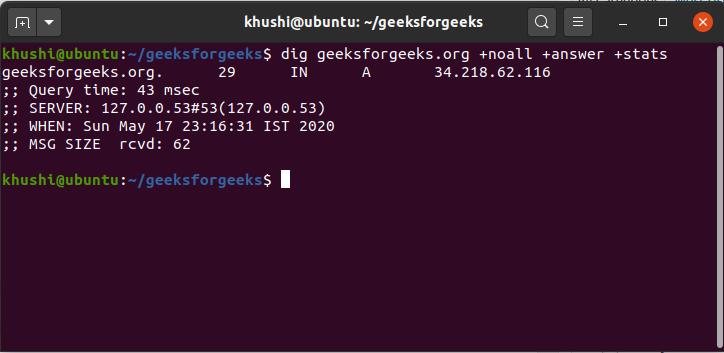
dig is a command-line tool for querying DNS name servers for information about host addresses, mail exchanges, name servers, and related information.

Understanding the default output

The most typical, simplest query is for a single host. By default, however, dig is pretty verbose. You probably don’t need all the information in the default output, but it is probably worth knowing what it is. Below is an annotated query.

This article explains you how to do the data recovery from a crashed windows-plesk server.


$ dig www.sparksupport.com

That is the command-line invocation of dig I used

; <<>> DiG 9.2.3 <<>> www.sparksupport.com

;; global options: printcmd

The opening section of dig’s output tells us a little about itself (version 9.2.3) and the global options that are set (in this case, printcmd). This part of the output can be quelled by using the +nocmd option, but only if it is the very first argument on the command line (even preceeding the host you are querying).


;; Got answer:

;; -&gt;&gt;HEADER&lt;&lt;- opcode: QUERY, status: NOERROR, id: 43071

;; flags: qr rd ra; QUERY: 1, ANSWER: 1, AUTHORITY: 3, ADDITIONAL: 3

Here, dig tells us some technical details about the answer received from the DNS server. This section of the output can be toggled using the +[no]comments option, but beware that disabling the comments also turns off many section headers.


;; QUESTION SECTION:

;www.sparksupport.com. IN A

In the question section, dig reminds us of our query. The default query is for an Internet address (A). You can turn this output on or off using the +[no]question option.


;; ANSWER SECTION:

www.sparksupport.com. 600 IN A 203.23.184.88

Finally, we get our answer: the address of www.sparksupport.com is 204.152.184.88. I don’t know why you’d ever want to turn off the answer, but you can toggle this section of the output using the +[no]answer option.


;; AUTHORITY SECTION:

sparksupport.com. 2351 IN NS ns1.nis.tc.org.

sparksupport.com. 2351 IN NS ns1.gnac.com.

sparksupport.com. 2351 IN NS ns2.nis.tc.org.

The authority section tells us what DNS servers can provide an authoritative answer to our query. In this example, sparksupport.com has three name servers. You can toggle this section of the output using the +[no]authority option.


;; ADDITIONAL SECTION:

ns1.gnac.com. 171551 IN A 203.23.34.21

ns-int.sparksupport.com. 2351 IN A 211.52.18.65

ns-int.sparksupport.com. 2351 IN AAAA 2001:4f8:0:2::15

The final section of the default output contains statistics about the query; it can be toggled with the +[no]stats option.

Some useful options with dig

dig will let you perform any valid DNS query, the most common of which are A (the IP address), TXT (text annotations), MX (mail exchanges), NS name servers, or the omnibus ANY.


# get the address(es) for yahoo.com

dig yahoo.com A +noall +answer

# get a list of yahoo's mail servers

dig yahoo.com MX +noall +answer

# get a list of DNS servers authoritative for yahoo.com

dig yahoo.com NS +noall +answer

# get all of the above

dig yahoo.com ANY +noall +answer

#Short answer

dig sparksupport.com +short

#To get the TTL values

dig +nocmd sparksupport.com mx +noall +short

#To get a long answer

dig +nocmd sparksupport.com any +multiline +noall +answer

#To reverselookup

dig -x 216.109.112.135 +short

To bulk lookups # do full lookups for a number of hostnames

#dig -f /path/to/host-list.txt

#the same, with more focused output

dig -f /path/to/host-list.txt +noall +answer

Tracing dig's path

dig sparksupport.com +trace

How to interpret TTL value

If you ask your local DNS server for an Internet address, the server figures out where to find an authoritative answer and then asks for it. Once the server receives an answer, it will keep the answer in a local cache so that if you ask for the same address again a short time later, it can give you the answer quickly rather than searching the Internet for it all over again.
When domain administrators configure their DNS records, they decide how long the records should remain in remote caches. This is the TTL number (usually expressed in number of seconds).

When domain administrators configure their DNS records, they decide how long the records should remain in remote caches. This is the TTL number (usually expressed in number of seconds).

For example, as of this writing, the TTL for the MX records for the gmail.com domain is 300 seconds. The gmail.com admins are asking that remote servers cache their MX records for no more than five minutes. So when you first ask for that record set, dig will report a TTL of 300.


$ dig +nocmd gmail.com MX +noall +answer

gmail.com. 300 IN MX 20 gsmtp57.google.com.

gmail.com. 300 IN MX 10 gsmtp171.google.com.

If you ask a few seconds later, you’ll see the TTL number reduced by approximately the number of seconds you waited to ask again.


$ dig +nocmd gmail.com MX +noall +answer

gmail.com. 280 IN MX 10 gsmtp171.google.com.

gmail.com. 280 IN MX 20 gsmtp57.google.com.

If your timing is good, you can catch the record at the very end of its life.


$ dig +nocmd gmail.com MX +noall +answer

gmail.com. 1 IN MX 10 gsmtp171.google.com.

gmail.com. 1 IN MX 20 gsmtp57.google.com.

After that, the DNS server you are querying will “forget” the answer to that question, so the whole cycle will start over again (in this example, at 300 seconds) the next time you perform that query.

VN:F [1.9.6_1107]
Rating: 10.0/10 (1 vote cast)
VN:F [1.9.6_1107]
Rating: +2 (from 2 votes)

Shijil T S Articles, linux

System Admin Tools Part -1: Basic linux commands and tools used by an experienced sytem admin

May 18th, 2009

FREE

First of all lets learn how to find out what is chocking or gobbling up the server resource. You can get the memory usage by issuing the command “free -m”


root@spark [~]# free -m

             total       used       free     shared    buffers     cached

Mem:          4051       3052        999          0        249       1294

-/+ buffers/cache:       1508       2543

Swap:         4000          1       3999

The top row ‘used’ (3052) value will almost always nearly match the top row mem value (4051). Since Linux likes to use any spare memory to cache disk blocks (1294).

The key figure to look at is the buffers/cache row used value (1508). This is how much space your applications are currently using. For best performance, this number should be less than your total (4051) memory.

VMSTAT

vmstat helps you to see, among other things, if your server is swapping. Take a look at the following run of vmstat doing a one second refresh for two iterations.


root@spark [~]# vmstat 1 2

procs -----------memory---------- ---swap-- -----io---- --system-- ----cpu----

 r  b   swpd   free   buff  cache   si   so    bi    bo   in    cs us sy id wa

 0  0   1172 1689332 333588 663092    0    0    19   113    1     2  3  1 95  1

 0  0   1172 1690320 332920 663100    0    0   352   256  355   681  5  3 91  2

The first row shows your server averages. The si (swap in) and so (swap out) columns show if you have been swapping (i.e. needing to dip into ‘virtual’ memory) in order to run your server’s applications. The si/so numbers should be 0 (or close to it). Numbers in the hundreds or thousands indicate your server is swapping heavily. This consumes a lot of CPU and other server resources and you would get a very significant benefit from adding more memory to your server.

Some other columns of interest: The r (runnable) b (blocked) and w (waiting) columns help see your server load. Waiting processes are swapped out. Blocked processes are typically waiting on I/O. The runnable column is the number of processes trying to something. These numbers combine to form the ‘load’ value on your server. Typically you want the load value to be one or less per CPU in your server.

The bi (bytes in) and bo (bytes out) column show disk I/O (including swapping memory to/from disk) on your server.
The us (user), sy (system) and id (idle) show the amount of CPU your server is using. The higher the idle value, the better.

PS

This command is used to know all the processes running in the server. It can be also used to find out process which is using most of the memory and cpu.

To find out top 3 memory consuming processes.


ps -auxf | sort -nr -k 4 | head -3

To find out top 3 cpu consuming processes


ps -auxf | sort -nr -k 3 | head -3

TOP

Say the system is slow and you want to find out who is gobbling up all the CPU and/or memory. To display the top processes, you use the command top.

Note that unlike other commands, top does not produce an output and sits still. It refreshes the screen to display new information. So, if you just issue top and leave the screen up, the most current information is always up. Top runs until you press “q” to quit top.


$ top

18:46:13  up 11 days, 21:50,  5 users,  load average: 0.11, 0.19, 0.18

151 processes: 147 sleeping, 4 running, 0 zombie, 0 stopped

CPU states:  cpu    user    nice  system    irq  softirq  iowait    idle

           total   12.5%    0.0%    6.7%   0.0%     0.0%    5.3%   75.2%

Mem:  1026912k av,  999548k used,   27364k free,       0k shrd,  116104k buff

                    758312k actv,  145904k in_d,   16192k in_c

Swap: 2041192k av,  122224k used, 1918968k free                  590140k cached

  PID USER     PRI  NI  SIZE  RSS SHARE STAT %CPU %MEM   TIME CPU COMMAND

  451 spark    15   0  6044 4928  4216 S     0.1  0.4   0:20   0 tnslsnr

 8991 spark    15   0  1248 1248   896 R     0.1  0.1   0:00   0 top

    1 root      19   0   440  400   372 S     0.0  0.0   0:04   0 init

    2 root      15   0     0    0     0 SW    0.0  0.0   0:00   0 keventd

    3 root      15   0     0    0     0 SW    0.0  0.0   0:00   0 kapmd

    4 root      34  19     0    0     0 SWN   0.0  0.0   0:00   0 ksoftirqd/0

    7 root      15   0     0    0     0 SW    0.0  0.0   0:01   0 bdflush

    5 root      15   0     0    0     0 SW    0.0  0.0   0:33   0 kswapd

    6 root      15   0     0    0     0 SW    0.0  0.0   0:14   0 kscand

    8 root      15   0     0    0     0 SW    0.0  0.0   0:00   0 kupdated

    9 root      25   0     0    0     0 SW    0.0  0.0   0:00   0 mdrecoveryd

... output snipped ...

Let’s examine the different types of information produced.

The first line:


18:46:13  up 11 days, 21:50,  5 users,  load average: 0.11, 0.19, 0.18

shows the current time (18:46:13), that system has been up for 11 days; that the system has been working for 21 hours 50 seconds. The load average of the system is shown (0.11, 0.19, 0.18) for the last 1, 5 and 15 minutes respectively. (By the way, you can also get this information by issuing the uptime command.)

If the load average is not required, press the letter “l” (lowercase L); it will turn it off. To turn it back on press l again. The second line: 151 processes: 147 sleeping, 4 running, 0 zombie, 0 stopped shows the number of processes, running, sleeping, etc. The third and fourth lines:


CPU states:  cpu    user    nice  system    irq  softirq  iowait    idle

           total   12.5%    0.0%    6.7%   0.0%     0.0%    5.3%   75.2%

show the CPU utilization details. The above line shows that user processes consume 12.5% and system consumes 6.7%. The user processes include the Oracle processes. Press “t” to turn these three lines off and on. If there are more than one CPU, you will see one line per CPU.

The next two lines:


Mem: 1026912k av, 1000688k used, 26224k free, 0k shrd, 113624k buff

758668k actv, 146872k in_d, 14460k in_c Swap: 2041192k av, 122476k

used, 1918716k free 591776k cached

show the memory available and utilized. Total memory is “1026912k av”, approximately 1GB, of which only 26224k or 26MB is free. The swap space is 2GB; but it’s almost not used. To turn it off and on, press “m”.

The rest of the display shows the processes in a tabular format. Here is the explanation of the columns:

Column Description

PID The process ID of the process

USER The user running the process

PRI The priority of the process

NI The nice value: The higher the value, the lower the priority of the task

SIZE Memory used by this process (code+data+stack)

RSS The physical memory used by this process

SHARE The shared memory used by this process

STAT

The status of this process, shown in code. Some major status codes are:

R Running

S Sleeping

Z Zombie

T Stopped

You can also see second and third characters, which indicate:

W Swapped out process

N positive nice value

%CPU The percentage of CPU used by this process

%MEM The percentage of memory used by this process

TIME The total CPU time used by this process

CPU If this is a multi-processor system, this column indicates the ID of the CPU this process is running on.

COMMAND The command issued by this process

While the top is being displayed, you can press a few keys to format the display as you like. Pressing the uppercase M key sorts the output by memory usage. (Note that using lowercase m will turn the memory summary lines on or off at the top of the display.) This is very useful when you want to find out who is consuming the memory. Here is sample output:


PID USER     PRI  NI  SIZE  RSS SHARE STAT %CPU %MEM   TIME CPU COMMAND

31903 spark    15   0 75760  72M 72508 S     0.0  7.2   0:01   0 ora_smon_PRODB2

31909 spark    15   0 68944  66M 64572 S     0.0  6.6   0:03   0 ora_mmon_PRODB2

31897 spark    15   0 53788  49M 48652 S     0.0  4.9   0:00   0 ora_dbw0_PRODB2

Now that you learned how to interpret the output, let’s see how to use command line parameters.

The most useful is -d, which indicates the delay between the screen refreshes. To refresh every second, use top -d 1.

The other useful option is -p. If you want to monitor only a few processes, not all, you can specify only those after the -p option. To monitor processes 13609, 13608 and 13554, issue: top -p 13609 -p 13608 -p 13554
This will show results in the same format as the top command, but only those specific processes.

SKILL & SNICE

From the previous discussion you learned how to identify a CPU consuming resource. What if you find that a process is consuming a lot of CPU and memory, but you don’t want to kill it? Consider the top output below:


$ top -c -p 16514

23:00:44  up 12 days,  2:04,  4 users,  load average: 0.47, 0.35, 0.31

1 processes: 1 sleeping, 0 running, 0 zombie, 0 stopped

CPU states:  cpu    user    nice  system    irq  softirq  iowait    idle

           total    0.0%    0.6%    8.7%   2.2%     0.0%   88.3%    0.0%

Mem:  1026912k av, 1010476k used,   16436k free,       0k shrd,   52128k buff

                    766724k actv,  143128k in_d,   14264k in_c

Swap: 2041192k av,   83160k used, 1958032k free                  799432k cached

  PID USER     PRI  NI  SIZE  RSS SHARE STAT %CPU %MEM   TIME CPU COMMAND

16514 spark    19   4 28796  26M 20252 D N   7.0  2.5   0:03   0 sparkPRODB2...

Now that you confirmed the process 16514 is consuming a lot of memory, you can “freeze” it but not kill it using the skill command.


$ skill -STOP 1
After this, check the top output:
23:01:11  up 12 days,  2:05,  4 users,  load average: 1.20, 0.54, 0.38

1 processes: 0 sleeping, 0 running, 0 zombie, 1 stopped

CPU states:  cpu    user    nice  system    irq  softirq  iowait    idle

           total    2.3%    0.0%    0.3%   0.0%     0.0%    2.3%   94.8%

Mem:  1026912k av, 1008756k used,   18156k free,       0k shrd,    3976k buff

                    770024k actv,  143496k in_d,   12876k in_c

Swap: 2041192k av,   83152k used, 1958040k free                  851200k cached

  PID USER     PRI  NI  SIZE  RSS SHARE STAT %CPU %MEM   TIME CPU COMMAND

16514 spark    19   4 28796  26M 20252 T N   0.0  2.5   0:04   0 sparkPRODB2...

The CPU is now 94% idle from 0%. The process is effectively frozen. After some time, you may want to revive the process from coma:


$ skill -CONT 16514

This approach is immensely useful for temporarily freezing processes to make room for more important processes to complete.

The command is very versatile. If you want to stop all processes of the user “spark”, only one command does it all:


$ skill -STOP spark>

You can use a user, a PID, a command or terminal id as argument. The following stops all rman commands.


$ skill -STOP rman

As you can see, skill decides that argument you entered a process ID, userid, or command and acts appropriately. This may cause an issue in some cases, where you may have a user and a command in the same name. The best example is the “spark” process, which is typically run by the user “spark”. So, when you want to stop the process called “spark” and you issue:


$ skill -STOP spark

all the processes of user “spark” stop, including the session you may be on. To be completely unambiguous you can optionally give a new parameter to specify the type of the parameter. To stop a command called spark, you can give:


$ skill -STOP -c spark

The command snice is similar. Instead of stopping a process it makes its priority a lower one. First, check the top output:


  PID USER     PRI  NI  SIZE  RSS SHARE STAT %CPU %MEM   TIME CPU COMMAND

    3 root      15   0     0    0     0 RW    0.0  0.0   0:00   0 kapmd

13680 spark    15   0 11336  10M  8820 T     0.0  1.0   0:00   0 spark

13683 spark    15   0  9972 9608  7788 T     0.0  0.9   0:00   0 spark

13686 spark    15   0  9860 9496  7676 T     0.0  0.9   0:00   0 spark

13689 spark    15   0 10004 9640  7820 T     0.0  0.9   0:00   0 spark

13695 spark    15   0  9984 9620  7800 T     0.0  0.9   0:00   0 spark

13698 spark    15   0 10064 9700  7884 T     0.0  0.9   0:00   0 spark

13701 spark    15   0 22204  21M 16940 T     0.0  2.1   0:00   0 spark

Now, drop the priority of the processes of “spark” by four points. Note that the higher the number, the lower the priority.


$ snice +4 -u spark
  PID USER     PRI  NI  SIZE  RSS SHARE STAT %CPU %MEM   TIME CPU COMMAND

16894 spark    20   4 38904  32M 26248 D N   5.5  3.2   0:01   0 spark

Note how the NI column (for nice values) is now 4 and the priority is now set to 20, instead of 15. This is quite useful in reducing priorities.

Now lets get over to trace the process and manipulate it.

lsof

The command lsof shows a list of processes attached to open files or network ports. List processes attached to a given file: lsof filenmame


List all open files on system:
lsof

(Long list)

List all files opened by user:

The commands netstat -punta and socklist will list open network connections. Use the command lsof -i TCP:port-number to see the processes attached to the port.


root@spark [~]# lsof -i TCP:25 COMMAND PID USER FD TYPE DEVICE SIZE NODE NAME exim 11350 mailnull 4u IPv4 1226820346 TCP 201.201.203.43:smtp->esp222.neoplus.adsl.tpnet.pl:2466 (ESTABLISHED) exim 11350 mailnull 5u IPv4 1226820346 TCP 201.201.203.43:smtp->esp222.neoplus.adsl.tpnet.pl:2466 (ESTABLISHED) exim 11811 mailnull 4u IPv4 1226830746 TCP 201.201.203.43:smtp->ANantes-151-1-39-245.w83-195.abo.wanadoo.fr:627 31 (ESTABLISHED) exim 11811 mailnull 5u IPv4 1226830746 TCP 201.201.203.43:smtp->ANantes-151-1-39-245.w83-195.abo.wanadoo.fr:627 31 (ESTABLISHED) exim 14135 mailnull 4u IPv4 1226855434 TCP 201.201.203.43:smtp->125.115.215.112:3653 (ESTABLISHED) exim 14135 mailnull 5u IPv4 1226855434 TCP 201.201.203.43:smtp->125.115.215.112:3653 (ESTABLISHED)

To kill the processes


kill

killall

This will perform an orderly shutdown of the process. If it hangs give a stronger signal with:


kill -9 .

This method is not as sanitary and thus less preferred.

A signal may be given to the process. The program must be programmed to handle the given signal. See /usr/include/bits/signum.h for a full list.

To restart a process after updating it’s configuration file, issue the command


kill -HUP

The process attached to an open file can be killed using the command fuser:


fuser -ki filename
VN:F [1.9.6_1107]
Rating: 0.0/10 (0 votes cast)
VN:F [1.9.6_1107]
Rating: +1 (from 1 vote)

Prince Joseph Articles, linux

System Admin Tools Part 11

August 18th, 2007

Now I am going introduce you to a set of commands that may come handy

FIND

find -perm 777 -type d -exec chmod 755 {} \;   #Command to change all the folders under present directory with 777 to 755

find -perm 755 -type f -exec chmod 644 {} \;   #Command to change all the folders under present directory with 755 to 644

find -type d -maxdepth 3 -exec cp file {} \;   #Copy file to 3 levels of directories below the present directory

find . -name "*.trn" -ctime +3 -exec rm -f {} \;  #Forcible remove files with .trn extension and 3 days old.

find . -cmin -5   #Find all files created or updated in the last five minutes:

(Great for finding effects of make install)

LS


ls -lSh        #List files by their size

ls -ltr        #List files by date

ls -F          #Appends a symbol after files and directories

RSYNC


rsync -e ssh -az /currentdirectory IP:/remotedirectory  #Sync remote directory with our current directory.

rsync --bwlimit=1000 fromfile tofile                    #Locally copy with rate limit

GPG


gpg -c file                                             #Encrypt file

gpg file.gpg                                            #Decrypt file

DF


du -h --max-depth 1             #Show disk space used by all the files and directories.

du -s * | sort -k1,1rn | head   #Show top disk users in current directory.

df -h                           #Show free disk space

df -i                           #Show free inodes

Add system swap space for virtual memory paging

Swap space may be a swap partition, a swap file or a combination of the two. One should size swap space to be at least twice the size of the computer’s RAM. (but less than 2GB)


dd if=/dev/zero of=/swapfile bs=1024 count=265032 - #Create file filled with zeros of size 256Mb

mkswap /swapfile                                    #Create swap file

swapon /swapfile                                    #Begin use of given swap file.

Assign a priority with the “-p” flag.


swapon -s                                           #List swap files

scat /proc/swaps                                    #Same as above

This example refers to a swap file. One may also use a swap partition.
Make entry to /etc/fstab to permanently use swap file or partition.


/swapfile               swap                    swap    defaults        0 0

Note: To remove the use of swap space, use the command swapoff. If using a swap partition, the partition must be unmounted.

Debugging Tools


strace -c ls >/dev/null                 #Summarise/profile system calls made by command

strace -f -e open ls>/dev/null         #List system calls made by
command

ltrace -f -e getenv ls >/dev/null       #List library calls made by command

lsof -p $$                              #List paths that process id has open

lsof -p PID                             #List paths PID has open

lsof ~                                  #List processes that have specified path open

last reboot                             #Indicates last reboot time

renice +15 PID #To give lower priority for a PID -19 is highest and +20 is lowest

To check number of IP’s connecting to port 80


netstat -tanpu |grep :80 |awk {'print $5'} |cut -d: -f1 |sort -n |uniq -c

tcpdump not port 22                     #To show network traffic except on port 22

Perl Administration

Installation of perl module can be done from tar file.


tar xzf yourmodule.tar.gz               #Untar Module

perl Makefile.PL                        #Build with PERL makefile:

make

make install                            #Install

You can also do this from cpan shell

perl -MCPAN -e shell                    #First time through it will ask questions Answer "no" to the first question for

autoconfigure

cpan> install URI

cpan> i /PerlMagick/                    #Inquire about module. (Search by keyword)

Distribution    J/JC/JCRISTY/PerlMagick-5.36.tar.gz

Module          Image::Magick   (J/JC/JCRISTY/PerlMagick-5.36.tar.gz)

cpan> install Image::Magick

cpan>force install Image::Magick       #Install a module forcefully.

YUM :RPM Updater

YUM (Yellowdog Updater, Modified) is a client command line application for updating an RPM based system from an internet repository (YUM “yum-arch” server) accessible by URL (http://xxx, ftp://yyy or even file://zzz local or NFS)

yum -y install package-name            #To install a package along with its dependencies

yum remove package-name                 #To remove package

yum list                                #To list available packages version and state

yum list extras                         #To list packages not available in repositories but listed in config file

yum list obsoletes                      #To list packages which are obsoleted by repositories

yum clean all                           #To list packages which are obsoleted by packages in yum repository

yum update                              #Update all packages on your system

yum update package-name                 #Update a package

yum update package-name-prefix\*        #Update all with same prefix

You can add new repos in /etc/yum.repos.d with files named file.repo For the option “gpgcheck=1″ to work, use the “rpm –import GPG-KEY

rpm --import /usr/share/rhn/RPM-GPG-KEY

rpm --import /usr/share/rhn/RPM-GPG-KEY-fedora

File: /etc/yum.repos.d/fedora.repo with following entry

[base]

name=Fedora Core $releasever - $basearch - Base

#baseurl=http://download.fedora.redhat.com/pub/fedora/linux/core/$releasever/$basearch/os/

mirrorlist=http://fedora.redhat.com/download/mirrors/fedora-core-$releasever

enabled=1

gpgcheck=1

Additional Commands


tzselect                                #To change time zone of the machine

command 2>&amp;1 | tee outputfile.txt       #Output of a command is send to a text file

wget --mirror http://www.example.com    #To mirror a site

wget -c http://www.example.com/largefile #To continue downloading partially downloaded file

Many more tricky commands to be updated soon :)

VN:F [1.9.6_1107]
Rating: 0.0/10 (0 votes cast)
VN:F [1.9.6_1107]
Rating: 0 (from 0 votes)

Shijil T S Articles, linux ,