Archive

Archive for the ‘general’ Category

Nasscom IMS 2010: We are Attending

September 9th, 2010


Nasscom Infrastructure Management Summit 2010, will be held in Bangalore on September 15 and 16 and we will be attending.
With the Indian market shifting its focus to cloud computing and RIM services, NASSCOM IMS 2010 will be a platform for discussion about the emerging technologies and where the industry is heading.

Event details on the NASSCOM IMS 2010

VN:F [1.9.6_1107]
Rating: 0.0/10 (0 votes cast)
VN:F [1.9.6_1107]
Rating: 0 (from 0 votes)

admin Events, general , ,

Load balancing in Wowza Media Server

August 3rd, 2010

Wowza Media Server is a Video Stream Server used by popular CDN providers to provide video content across the internet. It has come with a large variety of features and several streaming options. And one of the attractive feature provided by wowza is that, it allows clustering like feature so that multiple servers can be configured to provide a video stream to the clients. In such a setup one of the server will act as a loadbalancing server and the others will act as the loadbalancing edge/client servres. If a client requests a video stream then a load balancer server redirect it to the least loaded wowza server. This loadbalancing feature is usually used while publishing live streams becuase the number of concurrent connections to the server providing live stream will be high and a load balancing setup can easily manage it. Here we will discuss the load balancing setup for a live stream proess.

To employ loadbalancing setup in live streaming first we have to setup live streaming repeater configuration available with wowza. This is because the live stream will be actually published to only one server and we need to duplicate among a no of stream servers as our need. So there will be live repeater origin server and several live repeater edge servers. When the player will request the contentfrom an edge server and the edge server will maintain a single connection per-unique stream to the origin. Origin and edge configuration is an application level configuration. A single Wowza Server instance can be configured as an origin for one application and an edge for another.

1) Configuring liverepeater-origin server
  • Create a folder named [install-dir]/applications/liverepeater.
  • Create a folder named [install-dir]/conf/liverepeater and copy the file [install-dir]/conf/Application.xml into this new folder.
  • Edit the newly copied Application.xml file and make the following changes:

a) Change the Streams/StreamType to liverepeater-origin

b. Change the LiveStreamPacketizers to: cupertinostreamingpacketizer,smoothstreamingpacketizer

2)Configuring edge server

Follow these steps to configure each of the edge servers

  • Create a folder named [install-dir]/applications/liverepeater.
  • Create a folder named [install-dir]/conf/liverepeater and copy the file [install-dir]/conf/Application.xml into this new folder.
  • Edit the newly copied Application.xml file and make the following changes.

a)Change the Streams/StreamType to liverepeater-edge (you can use the liverepeater-edge-lowlatency stream type if low latency is important, this will add extra load to the server).

b)Change the LiveStreamPacketizers to: cupertinostreamingrepeater,smoothstreamingrepeater

c)Uncomment the Repeater/OriginURL section and set OriginURL to rtmp URL of the origin server. For example if the origin server uses the domain name      origin.mycompany.com, this value should be set to:


<Repeater>

         <OriginURL>rtmp://origin.mycompany.com</OriginURL>

         <QueryString></QueryString>

</Repeater>

Note: Let us assume origin.mycompany.com is the origin server here

3)Configring the Loadbalancer server

  • First Download the loadbalancing module the from the following link of wowza forums. Unzip the downloaded file

http://www.wowzamedia.com/forums/showthread.php?t=4637

  • Copy the file lib/wms-plugin-loadbalancer.jar from this zip archive to the [install-dir]/lib/ folder of Wowza Media Server 2
  • Copy the file conf/crossdomain.xml from this zip archive to the [install-dir]/conf/ folder of Wowza Media Server 2.
  • Edit [install-dir]/conf/Server.xml and make the following changes:

Add the following ServerListener entry to the <ServerListeners> list:

    <ServerListener>
           	  <BaseClass>com.wowza.wms.plugin.loadbalancer.ServerListenerLoadBalancerListener</BaseClass>
    </ServerListener>

Add the following properties to the <properties> section of the bottom of the server.xml file

      <Property>
               <Name>loadBalancerListenerKey</Name>
	      <Value>023D4FB4IS83</Value>
      </Property>
      <Property>
	      <Name>loadBalancerListenerIpAddress</Name>
	      <Value>*</Value>
      </Property>
      <Property>
	     <Name>loadBalancerListenerPort</Name>
	     <Value>1934</Value>
	     <Type>Integer</Type>
      </Property>
      <Property>
	      <Name>loadBalancerListenerRedirectorClass</Name>
	      <Value>com.wowza.wms.plugin.loadbalancer.LoadBalancerRedirectorConcurrentConnects</Value>
      </Property>
      <Property>
	      <Name>loadBalancerListenerMessageTimeout</Name>
	      <Value>5000</Value>
	      <Type>Integer</Type>
      </Property>
  • Edit [install-dir]/conf/VHost.xml and add the following HostPort/HTTPProvider XML snippet just before the HTTPProvider definition for com.wowza.wms.http.HTTPServerVersion:
      <HTTPProvider>
                   <BaseClass>com.wowza.wms.plugin.loadbalancer.HTTPLoadBalancerRedirector</BaseClass>
	           <RequestFilters>*loadbalancer</RequestFilters>
	           <AuthenticationMethod>none</AuthenticationMethod>
	           <Properties>
                              <Property>
		          	  <Name>enableServerInfoXML</Name>
                   		  <Value>true</Value>
		                  <Type>Boolean</Type>
		           </Property>
	         </Properties>
     </HTTPProvider>

4)To setup an edge servers in load balancing

Do the first two steps as done for the load balacer server

  • Edit [install-dir]/conf/Server.xml and make the following changes:

Add the following ServerListener entry to the <ServerListeners> list:


     <ServerListener>
	           <BaseClass>com.wowza.wms.plugin.loadbalancer.ServerListenerLoadBalancerSender</BaseClass>
     </ServerListener>

Add the following properties to the <Properties> section at the bottom of Server.xml:


   <Property>
	    <Name>loadBalancerSenderTargetPath</Name>
	    <Value>${com.wowza.wms.AppHome}/conf/loadbalancertargets.txt</Value>
   </Property>
   <Property>
	    <Name>loadBalancerSenderRedirectAddress</Name>
	    <Value>[redirect-address]</Value>
   </Property>
   <Property>
            <Name>loadBalancerSenderMonitorClass</Name>
	    <Value>com.wowza.wms.plugin.loadbalancer.LoadBalancerMonitorDefault</Value>
   </Property>
   <Property>
	    <Name>loadBalancerSenderMessageInterval</Name>
	    <Value>2500</Value>
	    <Type>Integer</Type>
   </Property>

Where [redirect-address] is the external ip address or domain name of this machine. This address will be used when redirecting to this edge server. When using this system on EC2 you can set the [redirect-address] to   ${com.wowza.amazonaws.ec2.AWSEC2_METADATA_PUBLIC_IPV4} and upon server startup it will use the public ip address of the server for this value.

  • Create the file [install-dir]/conf/loadbalancertargets.txt using a text editor and enter the following two lines (the first line is a comment):

# [load-balancer-ip-address],[load-balancer-port],[encryption-key]

[load-balancer-ip-address],1934,023D4FB4IS83

  Where [load-balancer-ip-address] is the ip  address or domain name of the load balancer.

This configurations uses UDP port 1934 for communication between the edge servers and the load balancer. Be sure this port is open on your firewall. All communication between the edge server and the load balancer is encrypted and signed. The encryption key is set on the load balancer server using the loadBalancerListenerKey property and in the loadbalancertargets.txt file on the edge servers. These keys must match. An edge server can communicate with multiple load balancers by adding additional lines to the loadbalancertargets.txt file.

You can now startup the load balancer and multiple edge servers. If functioning properly, the edge servers will update the load balancer every 2.5 seconds with status and load information. You can get information from the load balancer in regards to which edge servers are currently registered and their status by opening a web browser and entering the following url:

 http://[load-balancer-ip-address]:1935/loadbalancer?serverInfoXML

5)Now Configure a redirect application to redirect the connection requests to the least loaded server.
  • Create the folder [install-dir]/applications/redirect.
  • Create the folder [install-dir]/conf/redirect and copy the file [install-dir]/conf/Application.xml into this new folder.
  • Create the folder [install-dir]/conf/redirect and copy the file [install-dir]/conf/Application.xml into this new folder.
      <Module>
	    <Name>ModuleLoadBalancerRedirector</Name>
	    <Description>ModuleLoadBalancerRedirector</Description>
            <Class>com.wowza.wms.plugin.loadbalancer.ModuleLoadBalancerRedirector</Class>
      </Module>
  • Add the following properties the properties section at the bottom of the Application.xml file:
   <Property>
             <Name>redirectAppName</Name><code>
             <Value>[application-name]</Value>
    </Property>
    <!--
    <Property>
	     <Name>redirectPort</Name>
	     <Value>[redirect-port]</Value>
    </Property>
    -->
    <!--
    <Property>
	     <Name>redirectScheme</Name>
              <Value>rtmp</Value>
    </Property>
    -->
    <Property>
	     <Name>redirectOnConnect</Name>
	     <Value>true</Value>
	     <Type>Boolean</Type>
    </Property>

Where [application-name] is the name of the application you wish to redirect to on the edge server and [redirect-port] is the port to redirect to (such as port 1935 or port 80). The redirectPort and redirectScheme are commented out so that the system will use the same scheme and port used to connect to the load balancer to connect to the edge server. This will work better when using any type of protocol (rtmp to rtmpt) or port rollover scheme.

VN:F [1.9.6_1107]
Rating: 8.7/10 (10 votes cast)
VN:F [1.9.6_1107]
Rating: +2 (from 4 votes)

Jaseer Articles, general , , ,

How To Install Red5 on CentOS

August 2nd, 2010

Red5 is an open source video sream server appllication which helps you to stream your video content across the web. Inorder to install and run red5, you need the java platform installed on your system. Using apache-ant or eclipse we can build and install Red5. Here apache-ant  method is described.

1)Using Apache-ant

a)install jdk 1.6 or higher and its curresponding deveopment package.

#yum install java-1.6.0-openjdk java-1.6.0-openjdk-devel

b)Install apache-ant

To build the red5 binary from source we need apache-ant. So install it.

#cd /usr/src

#wget http://archive.apache.org/dist/ant/binaries/apache-ant-1.8.0-bin.tar.bz2

#tar -xjf apache-ant-1.8.0-bin.tar.bz2

#mv apache-ant-1.8.0 /usr/local/ant

c)Set the enviroment variables for java, ant and java class path

export ANT_HOME=/usr/local/ant
export JAVA_HOME=/usr/lib/jvm/java
export PATH=$PATH:/usr/local/ant/bin
export CLASSPATH=.:$JAVA_HOME/lib/classes.zip

If you want this to be avilable for all users, append these lines to the file /etc/bashrc

d)Now Install subversion to downlaod the svn version from the googlecode.

#yum install subversion

e)Download and Install Red5

#svn checkout http://red5.googlecode.com/svn/java/server/trunk/ red5

#mv red5 /usr/local

#cd /usr/local/red5

#ant prepare

#ant build

Note: If you are building on CentOS 5.4 use “#ant dist” command instead of “#ant build”

This will take some time. So please be patient.

Finally you will see a line “Build successful” .That means your red5 installation is complete. Now copy the conf directory from dist/ to the current directory and now test your installation by runnig the script

#cp -r dist/conf .
#./red5.sh

Your Installation is ok if it shows “Installer service created” in the last. Now press ctrl+c to quit the process and go for the init script

f)Init Script

#vi /etc/init.d/red5

copy the following code to it.

#!/bin/bash
 PROG=red5
 RED5_HOME=/usr/local/red5
 DAEMON=$RED5_HOME/$PROG.sh PIDFILE=/var/run/$PROG.pid
# Source function library . /etc/rc.d/init.d/functions[ -r /etc/sysconfig/red5 ] && . /etc/sysconfig/red5RETVAL=0
case "$1" in
 start)
 echo -n $"Starting $PROG: "
 cd $RED5_HOME
 $DAEMON >/dev/null 2>/dev/null &
 RETVAL=$?
 if [ $RETVAL -eq 0 ]; then
 echo $! > $PIDFILE
 touch /var/lock/subsys/$PROG
 fi
 [ $RETVAL -eq 0 ] && success $"$PROG startup" || failure $"$PROG startup"
 echo
 ;;
 stop)
 echo -n $"Shutting down $PROG: "
 killproc -p $PIDFILE
 RETVAL=$?
 echo
 [ $RETVAL -eq 0 ] && rm -f /var/lock/subsys/$PROG
 ;;
 restart)
 $0 stop
 $0 start
 ;;
 status)
 status $PROG -p $PIDFILE
 RETVAL=$?
 ;;
 *)
 echo $"Usage: $0 {start|stop|restart|status}"
 RETVAL=1 esac
exit $RETVAL

 
g)Start the service and test your server

#/etc/init.d/red5 start

Now you can open your browser enter http://[your_ip]:5080 and see your sever working. You can install the sample applications and view the demos.

VN:F [1.9.6_1107]
Rating: 4.3/10 (3 votes cast)
VN:F [1.9.6_1107]
Rating: +1 (from 1 vote)

Jaseer Articles, general, linux , ,

What is Video Streaming

July 13th, 2010

Video stream servers are meant to provide the video content across internet in reliable and generic way so that any client can access easily. They uses diffrent protocols other than http namely rtsp, rtmp, rtp etc. And these protocols mainly uses udp. A basic video streaming system contains 3 components. A video publishing side, The video streaming server and the client side player (usually flash player embedded in the webpage). The video publishing system will upload a live or static video content to the Video Stream Server and the video stream sever will broadcast (means streaming)  that uploaded video such that the clients can view the videos without bothering about any codecs. The video uploading system should have an encoder to publish live contents to the server. The encoder does the process of transcoding to provide the content to the desired format of the stream server.

Major stream server applications are Wowza Media Server, Adobe Flash Media Server, Red5:open source flash server, Darwin Streaming server (open source) etc.

Working
Actual work flow when a web client is accessing stream video from a website is deiscribed in the figure. When the user clicks on a particular video icon the web server passes a request to the stream server. It will also notify the information about the client side  player (usually it will be a flash player application). Because the if it is a flash client then the request sent will be rtmp (Real Time Messaging Protocol ) protocol based. The stream server will stream (send the video packets) video based on rtmp protocol for flash players. For client players like vlc, apple quick-time etc  the protocol used is rtsp (Real Time Streaming Protocol).

A video streaming setup contains 3 components they are

  1. Video Stream server
  2. Web server for providing a web interface to the clients
  3. The flash player embedded on the web page (Or stand alone players like vlc, quicktime etc if not accessing through the site).

If the video server streams a live video then one publishing site will be there which will provide the  the live video source. Figure 2 illustrates such a video stream server setup. A video Streaming server application would be running on the Streaming server. The broadcaster would use an live  encoding tool (eg: flash live media encoder). If the client is accessing the video on an html web page the player might be adobe flash player. Flash offers online broadcasters a platform rich with unmatchable flexibility and superior quality video delivery. Flash has fast become the standard for delivery of rich-media over the internet. TV and Video Broadcasters and a wide variety of content creators around the globe have chosen Flash as their No. 1 streaming format.

Live video stream setup

If the video server streams a live video then one publishing site will be there which will provide the the live video source. Figure 2 illustrates such a video stream server setup. A video Streaming server application would be running on the Streaming server. The broadcaster would use an live encoding tool (eg: flash live media encoder). If the client is accessing the video on an html web page

the player might be adobe flash player. Flash offers online broadcasters a platform rich with unmatchable flexibility and superior quality video delivery. Flash has fast become the standard for delivery of rich-media over the internet. TV and Video Broadcasters and a wide variety of content creators around the globe have chosen Flash as their No. 1 streaming format.

VN:F [1.9.6_1107]
Rating: 4.8/10 (4 votes cast)
VN:F [1.9.6_1107]
Rating: +2 (from 2 votes)

Jaseer Articles, general , , , ,

How to install and configure Bacula

December 25th, 2009

Bacula : –   It comes by night and sucks the vital essence from your computers..

Introduction:

Bacula is an on-linebased back up tool. Which is used to backup files from different servers into back up server where the bacula is running. For setup this backup tool across network first you have to install bacula server package on backup server machine where you are storing your backup contents ,and install bacula client daemon on all other servers from where we are going to backup data.


Bacula has five main components.

1.Director daemon

This daemon co-ordinate all working of backup,and through its configuration file we can specify all these things.

2.File daemon

This daemon works in all clients from that client we are backup data. Director daemon connect to this daemon after authentication and backup the files from this client.

3.Storage daemon

This daemon is for store the backup data from client in to hard disk of backup server,usually this daemon and director daemon works in the same backup server. director works as intermediate between the file daemon and storage daemon.

4.Console daemon

This is a terminal to control all works.This console connect to director daemon and using its commands we can define all things related with backup .

5.Catalog Database

The database used here is for store all information related to the backup, including the file indexing.Commonly used database for bacula is Mysql.


This figure shows how the different bacula daemon configuration files were linked together.

bacula

Install and Configure Bacula Server

You can install bacula from rpm packages or from Source compilation. Here we are focusing on the source method,which is tested and is working fine.

* Download latest version of bacula from bacula.org site .

Here we are using following versions


1. bacula-3.0.3.tar.gz (http://sourceforge.net/projects/bacula/files/bacula/3.0.3/bacula-3.0.3.tar.gz/download)

2. depkgs-18Feb09.tar.gz or later versions (http://sourceforge.net/projects/bacula/files/depkgs/18Feb09/depkgs-18Feb09.tar.gz/download)

This two packages are used to setup a bacula,In which you have to install depkgs-18Feb09.tar.gz first to solve remaining dependency problems before starting bacula-3.0.3.tar.gz. You should not hesitate to install depkgs-18Feb09.tar.gz ,it contains different packages ,in which you can install “mtx and qwt”. you need not install sqlite database because mysql is the default database.

tar -xzf depkgs-18Feb09.tar.gz
cd depkgs
make qwt
make mtx
gmake mtx-instal

Then Enter in to the bacula source directory and Use the following configurations settings to install bacula (Or You can use system default configuration)


 CFLAGS="-g -O2" \
./configure \
--sbindir=/usr/local/bacula/bin \
--sysconfdir=/usr/local/bacula/bin \
--with-pid-dir=/usr/local/bacula/bin/working \
--with-subsys-dir=/usr/local/bacula/bin/working \
--enable-smartalloc \
--with-mysql \
--with-working-dir=/usr/local/bacula/ \
 --with-dump-email=user.name=@????.se \     #The mail addresses is to mail all activities of your backup in to your inbox.
--with-job-email=user.name@????.se \
--with-smtp-host=localhost \
--enable-bat \
--with-qwt=/usr/local/qwt-5.0.2/        #path to qwt source folder( usually it is inside depkg folder that you are installed previously)</pre>

make

make install

make install-autostart   #only supported for the officially supported systems (Redhat/Fedora...).This will put all startup script into the /etc/init.d/ folder and corresponding syslinks , so automatically start corresponding daemon at  startup.

make distclean  # type this to clear all configuration settings if you are starting ./configure from beginning.

Now you are successful completed the installation of bacula server , then type

Then we have to setup the Database to store the catalog information.Most commonly used database is Mysql,and setup the corresponding users,databases and privileges for the bacula application.

 /etc/init.d/mysqld start 

Bacula installation has included some scripts to complete the initial database and other server setups, these scripts are under your bin folder of the installed directory.

cd <Installed path>/bin

./grant_mysql_privileges -u root -p

Create database

./create_mysql_database -u root -p
./make_mysql_tables -u root -p

create a directory called working under /usr/local/bacula/bin/

Afrer installation of bacula. navigate to installed folder and run bacula by typing

./bacula start

This will start all three daemons ( bacula-dir,bacula-sd and bacula-fd)

And then check ports where these daemons are listening.

default case:

daemon    |  port
===================
bacula-dir   9101
bacula-fd    9102
bacula-sd    9103

make sure that the above mentioned ports are added and opened in the csf.conf file of the server or in some other firewall settings

After successful installation to start the sample backup from same system where you installed all three daemons . Follow this simple tutorial :

http://www.bacula.org/en/rel-manual/Brief_Tutorial.html#TutorialChapter

To administrate  bacula it  provide a console or terminal named as bconsole . Using this console we can do all work from back end.

NB: For installation from source package, after detar you should read the README and INSTALL files. Most of the time this will helps you to complete installation.

Install and Configure Bacula Client

After downloading the source and depkgs do the depkgs installation as mentioned  above
Use these following  configuration to install client  :

CFLAGS="-g -O2" ./configure  --bindir=/usr/local/bacula/bin --sysconfdir=/usr/local/bacula/bin --with-pid-dir=/usr/local/bacula/bin/working --with-subsys-dir=/usr/local/bacula/bin/working --enable-smartalloc --with-working-dir=/usr/local/bacula/ --with-dump-email=user@yourdomain.com --with-job-email=user@yourdomain.com  --with-smtp-host=localhost  --with-qwt=../depkgs/qwt-5.0.2/(here path to qwt source) --enable-client-only

If your system is 64-bit(To know it use the command arch ) then add –libdir=/usr/local/lib64

make

make install

make install-autostart-fd     //It helps start client daemon at start up.

create a directory called working under /usr/local/bacula/bin/

start the file daemon using

/etc/init.d/bacula-fd start

add a new “client”and “job” in to the bacula-dir.conf

and set the password in the in the conf’s as shown in the above figure (Use above tutorial also)

Use Follwing configuration checking if you have any problems with the bacula setup

a) Client bacula-fd daemon listening to 9102
b) Edit bacula-fd.conf ,Change the Director name and password to Director name and client resource password in the  bacula-dir.conf
    file of the Server.
c) Add server hostname to the /etc/hosts of the client system, inorder to ensure correct resolution.

d) Also check the ports 9102 to listen server request and 9103 to contact server storage daemon by typing

telnet server-hostname 9103 (from client )
telnet client-hostname 9102  (from server)

========================================================================================
Above procedure is the standard installation steps ; You can download and use the documentation (*.gz) package from bacula.org for more details.
========================================================================================

SET UP WEB BASED INTERFACE TO MONITOR BACULA( php and perl based)

—————————————————————————————————————-
( Install this package in your backup server where your bacula-server is installed)

1.Bweb web based comprehensive admin tool

Bweb developed up on perl,so in order to install bweb we need to install some perl dependencies files.
you can use cpan.
You can install this tool just following the INSTALL file under bacula-gui-XXX/bweb/. This file is more than enough to complete the installation of bweb.

2. bacula-gui-3.0.3.tar.gz

Download this package to setup web interface .

Detar this package and Read README to complete installtaion [in this package You need not type ‘make or make install’ , just

 ./configure --with-bacula=(path to bacula source folder)

Then copy the bacula-web from this source folder and place it in your document root of the apache.

NB: This gui was only tested with php 4.3.4 and php-5.0.4,later. you may get blank page while you are using later versions.check the error log and correct it (may be some permission error ). If you have any problem to install php 4.3.4 with your latest apache 2.2.* then go for apache 2.0.* versions.

Here we tested the following versions.
1.Install pear DB by typing “#pear install DB ”
2.apache 2.0.63
3.php-4.3.4

After installation web-servercopy copy folder bacula-web to its document root , then type : http://system-ip:/bacula-web

Some Error Fixes:

————————————

1.If your configuration of server and clients seems to be correct, but you still receiving  this error

eg:”: Fatal error: bsock.c:135 Unable to connect to Client: server.client.com-fd on server.client.com:9102. ERR=Interrupted system call ”

* Please check the firewall configurations,whether ports 9102 not blocked at client server and 9101or 9102 are not blocked at server .
* To check this telnet to destination port. If the system is installed with csf ,then check the TCP IN and OUT allowed ports.

VN:F [1.9.6_1107]
Rating: 8.0/10 (9 votes cast)
VN:F [1.9.6_1107]
Rating: +1 (from 1 vote)

Haridas N general, linux , ,

How to install nagios

December 7th, 2009

Below we give a brief description of how to install and configure Nagios.

To install Nagios make sure the following are installed and working properly in your machine


* httpd
* php
* gcc
* glibc
* glibc-common
* gd
* gd-devel
* png
* png-devel
* jpeg
* jpeg-devel
* zlib
* zlib-devel

Install Steps

1) Create a new user and group as root

Create a new user nagios.

useradd -m nagios

passwd nagios 

Create a new nagcmd group for allowing external commands to be submitted through the web interface. Add both the nagios user and the apache user to the group.

/usr/sbin/groupadd nagcmd

/usr/sbin/usermod -a -G nagcmd nagios

/usr/sbin/usermod -a -G nagcmd apache 

2) Download Nagios and the Nagios Plugins

Download the source code tarballs of both Nagios and the Nagios plugins.


wget http://sourceforge.net/projects/nagios/files/nagios-3.x/nagios-3.2.0/nagios-3.2.0.tar.gz/download
wget http://sourceforge.net/projects/nagiosplug/files/nagiosplug/1.4.14/nagios-plugins-1.4.14.tar.gz/download

3) Compile and Install Nagios

Extract the Nagios source code.


tar xzf nagios-3.2.0.tar.gz
cd nagios-3.2.0

make sure that these libraries are already installed in the system .Otherwise install them using YUM


   * gd
    * gd-devel
    * png
    * png-devel
    * jpeg
    * jpeg-devel
    * zlib
    * zlib-devel 

Run the Nagios configure script, passing the name of the group:

 ./configure --with-command-group=nagcmd 

Compile the Nagios source code.

 make all 

Install binaries, init script, sample config files and set permissions on the external command directory.

make install

make install-init

make install-config

make install-commandmode 

4) Customize Configuration

After installation the default configuration file can be found in the directory /usr/local/nagios/etc/. Also edit your contact information

 vi /usr/local/nagios/etc/objects/contacts.cfg

5) Configure the Web Interface

Install the Nagios web config file in the Apache conf.d directory.

 make install-webconf 

Create a nagiosadmin account for logging into the Nagios web interface.

 htpasswd -c /usr/local/nagios/etc/htpasswd.users nagiosadmin 

Restart Apache to make the new settings take effect.

 /etc/init.d/httpd restart 

6) Compile and Install the Nagios Plugins

Extract the Nagios plugins source code.

 tar xzf nagios-plugins-1.4.14.tar.gz

cd nagios-plugins-1.4.14 

Compile and install the plugins.

 ./configure --with-nagios-user=nagios --with-nagios-group=nagios
make

make install

7) Start Nagios

Add Nagios to the list of system services and have it automatically start when the system boots.

 chkconfig --add nagios

chkconfig nagios on 

Verify the default Nagios configuration files.

 /usr/local/nagios/bin/nagios -v /usr/local/nagios/etc/nagios.cfg 

If there are no errors, start Nagios.

 service nagios start

8) Modify SELinux Settings

This step is important if the Selinux is not in the Permissive mode it shows error like this

See if SELinux is in Enforcing mode.

getenforce

Put SELinux into Permissive mode.

setenforce 0

To make this change permanent, you’ll have to modify the settings in /etc/selinux/config and reboot.

9) Login to the Web Interface
You should now be able to access the Nagios web interface at the URL below. You’ll be prompted for the username (nagiosadmin) and password(nagios) you specified earlier.

http://localhost/nagios/ 

10) Add hosts to be monitored

There are object configuration files in which you can define hosts, host groups, contacts, contact groups, services, etc. You can split your object definitions across several config files if you wish, or keep them all in a single config file.

For convinience we created two files hosts.cfg and services.cfg under the directory /usr/local/nagios/etc/objects/ and add the file path to /usr/local/nagios/etc/nagios.cfg as

cfg_file=/usr/local/nagios/etc/objects/hosts.cfg
cfg_file=/usr/local/nagios/etc/objects/services.cfg 

Then create a simple script to add hosts, named add_host_service.sh by adding the following lines.

## script begins here
#!/bin/bash
echo "Enter Host Name"
read name
echo "Enter IP Address of $name"
read ip_add

echo "
define host{
        use                     linux-server
        host_name               $name
        alias                   $name
        address                 $ip_add
        }
" >> /usr/local/nagios/etc/objects/hosts.cfg

echo "
define service {
host_name                       $name
service_description             HTTP
check_command                   check_http
use                             generic-service
notification_interval           1
}
define service {
host_name                       $name
service_description             POP
check_command                   check_pop
use                             generic-service
notification_interval           1
}
define service {
host_name                       $name
service_description             SMTP
check_command                   check_smtp!-t 20
use                             generic-service
notification_interval           1
}
" >> /usr/local/nagios/etc/objects/services.cfg 

##script ends here

The above script will monitor three services HTTP, SMTP and POP. To monitor a new service add a new define service entry as shown above.

execute the above script by the command

sh add_host_service.sh

While the execution it will ask for the host name and the IP Address of the host to be added. After execution it will add a new host to nagios. To verify the nagios configuration for errors use the command

/usr/local/nagios/bin/nagios -v /usr/local/nagios/etc/nagios.cfg

For the changes to take effect we must restart the nagios as follows.

killall nagios
/usr/local/nagios/bin/nagios -d /usr/local/nagios/etc/nagios.cfg

Now you can find the newly added hosts under the link Hosts in Nagios interface.

Happy Monitoring

Posted by
mmm1
Mobin
Jr Software Engineer
SparkSupport

&

paesPaes
Jr Software Engineer
SparkSupport
VN:F [1.9.6_1107]
Rating: 10.0/10 (4 votes cast)
VN:F [1.9.6_1107]
Rating: 0 (from 0 votes)

admin general, linux

phpmotion install script

April 29th, 2009

Sparksupport offers you the script to install phpmotion in your root folder or subfolder. Copy paste this script to a file name of your like and execute with the command sh filename. You should answer the questions asked during the execution of the script.

Requirements:

Cpanel Server
Root access


#!/bin/bash
#Copyright @2009 SparkSupport
################
home="/home"
phpconf="/usr/local/apache/conf/php.conf"
#################

scriptfile=`basename $0`
dbsuffix=`mkpasswd -l 3 -s 0 -d 0 -c 0 -C 0`
randompass=`mkpasswd -l 6 -s 0 -d 2`
if ! [ $? ]
then
        echo "Newer version required: mkpasswd"
        rm -f $scriptfile
        exit 1
fi

echo -n "Enter domain name :"
read domain
echo -n "Enter username :"
read user
#echo -n "Enter email address: "
#read email

echo -n "If installation is in default document root press "Enter" or else specify
sub folder :"
read subfolder

if [ -n $subfolder ]
then
        BDIR="$home/$user/public_html/$subfolder"
        [ -d $home/$user/public_html ] && mkdir $BDIR
else
        BDIR="$home/$user/public_html"
fi

if [ -d $BDIR ]
then
        cd $BDIR
        wget http://downloads.phpmotion.com/V2.1/PHP5.zip
        if [ -e PHP5.zip ]
        then
                unzip PHP5.zip
                cp -ar PHP5/PHPmotion/* .
                chown -R $user.$user $BDIR
                chown $user.nobody "$home/$user/public_html"
                rm -f PHP5.zip
                if [ -n $subfolder ]
                then
                        sed -i '/temp_dir/ s#/temp/#/'$subfolder'/temp/#' cgi-bin/{audio,}/uu_default_config.pm
                        sed -i '/upload_dir/ s#/uploads/avi/#/'$subfolder'/uploads/avi/#' cgi-bin/{audio,}/uu_default_config.pm
                        sed -i '/redirect_url/ s#/uploader_finished.php#/'$subfolder'/uploader_finished.php#' cgi-bin/{audio,}/uu_default_config.pm
                        sed -i '/path_to_upload/ s#/uploads/avi/#/'$subfolder'/uploads/avi/#' cgi-bin/{audio,}/uu_default_config.pm
                        sed -i '/path_to_upload_script/ s#/cgi-bin/#/'$subfolder'/cgi-bin/#' uploader_conlib.php audio_uploader_conlib.php
                        sed -i '/path_to_ini_status_script/ s#/cgi-bin/#/'$subfolder'/cgi-bin/#' uploader_conlib.php audio_uploader_conlib.php
                fi
                if ! grep -q suphp_module $phpconf
                then
                        echo -n "Fixing permissions .. "
                        chmod 777 setup pictures classes temp logs addons uploads uploads/{avi,thumbs,audio,audio/temp,pictures}
                        chmod 755 cgi-bin/* cgi-bin/audio/*
                        echo ".. done"
                fi
                echo -n "Adding mysql db and user .. "
                /scripts/mysqladduserdb ${user}_pm${dbsuffix} $randompass
                echo ".. done"
        else
                echo "Could not fetch PHP5.zip .. try later"
                rm -f $scriptfile
                exit 1
        fi
else
        echo "Folder does not exist : $BDIR"
        rm -f $scriptfile
        exit 1
fi

echo  "Go to http://$domain/setup or  http://$domain/$subfolder/setup"
echo "################### USE THE FOLLOWING DETAILS ################"
echo  "UserName : ${user}_pm${dbsuffix}"
echo  "DbName   : ${user}_pm${dbsuffix}"
echo  "Password : $randompass"
echo "##############################################################"
rm -f $scriptfile

VN:F [1.9.6_1107]
Rating: 5.0/10 (6 votes cast)
VN:F [1.9.6_1107]
Rating: 0 (from 0 votes)

admin general, linux

uu_upload.pl download prompt

April 29th, 2009

I happen to see this uu_upload.pl download prompt error when installing phpmotion on a subfolder. This is because Apache doesn’t understand this perl file in cgi-bin.

Here is a fix which worked for me

Create a .htaccess file in cgi-bin of the subfolder and add the entry


  Options +ExecCGI
 AddHandler cgi-script .pl  

This error can also happen if you haven’t given the correct path for cgi-bin in uploader_conlib.php file


     $path_to_upload_script      = '/myvideos/cgi-bin/uu_upload.pl';
     $path_to_ini_status_script  = '/myvideos/cgi-bin/uu_ini_status.pl'; 

myvideos replace it with subfolder name.

VN:F [1.9.6_1107]
Rating: 6.6/10 (7 votes cast)
VN:F [1.9.6_1107]
Rating: -1 (from 1 vote)

Shijil T S general, linux

video not converting

April 29th, 2009

Hi

Its common that video files are not getting converted into flv format for streaming. This can be caused due to deprecated option that is still used for mencoder in the scripts of phpmotion and clipshare. All you have to do is to replace the existing options with the latest one in the convertor.php file of these scripts. I will give you a easy approach to accomplish this.

copy paste the sample code to a file named fixscript.sh in your home directory below public_html

find . ( -name "*.php" -or  -name "*.html" ) -exec grep -l "-lavfopts i_certify_that_my_video_stream_does_not_use_b_frames -vop" {} ; |xargs -d 'n'  sed -i -e 's/-lavfopts i_certify_that_my_video_stream_does_not_use_b_frames -vop/ -ofps 24 -vf/g'
find . ( -name "*.php" -or  -name "*.html" ) -exec grep -l "-lavfopts i_certify_that_my_video_stream_does_not_use_b_frames" {} ; |xargs -d 'n'  sed -i -e 's/-lavfopts i_certify_that_my_video_stream_does_not_use_b_frames/ -ofps 24/g' 

chmod it to 755 and execute the script by the command

sh fixscript.sh

if you get sed no input file, there is nothing to worry it means that there is no file that requires the change, it can be a newer version and doesn’t needs it.

there you go !! video conversion should be working now..

VN:F [1.9.6_1107]
Rating: 5.5/10 (2 votes cast)
VN:F [1.9.6_1107]
Rating: 0 (from 0 votes)

Shijil T S general, linux , ,

kernel 2.6 compile steps

April 28th, 2009

I decided to compile my own kernel for my centos.Here are the steps I have followed and which worked without any errors.

Goto kernel.org for the list of kernel source available

http://kernel.org/pub/linux/kernel/v2.6/ 

Download the one you like to the directory /usr/src

If you are using wget and by chance you got disconnected and if you wanted to continue from the last point you stopped use the command with -c option

wget -c [kernelsourceurl]

You can also apply the patch which can be downloaded from this Index page of kernel source. Applying patch is little bit tricky, another interesting thing I noticed is the revert function if you have already applied the patch, here are the steps

normally patch comes in bzip or gzip format, use the command bunzip2 or gunzip to extract the patch you can also do without extracting it but lets do it straight. First goto the extracted source directory of the kernel

/usr/src/kernel-2.6

patch -p1 < .../patch-2.6  #this ../patch-2.6 is the exact path of patch file 

and in order revert the patch use the command

patch -R -p1 < ../patch-2.6

Now start the steps for compilation


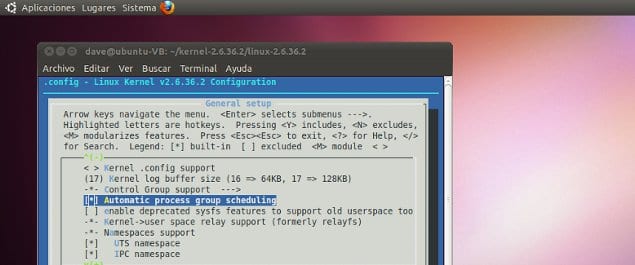
make menuconfig #select the options you want
make
make_modules
make install      #this will ensure that bzImage is copied, initrd image is made and the grub.conf is edited.

In order to boot the new kernel you need to edit default=0 in grub.conf but since you are unsure that it will work or not you can do a workaround to boot your compiled only once, that means in the next boot if the compiled kernel didn’t comes up you again do a reboot and then the previous kernel will be loaded.

Issue following commands

grub --no-floppy

and at the grub prompt

grub>savedefault --default=0 --once

If the new kernel boots up without any error you can edit the grub.conf to make this new kernel as the default one permanently.

VN:F [1.9.6_1107]
Rating: 5.8/10 (6 votes cast)
VN:F [1.9.6_1107]
Rating: 0 (from 0 votes)

Shijil T S general, linux ,