Archive

Author Archive

VIRTUAL DESKTOP INFRASRTUCTURE

November 3rd, 2010

VIRTUAL DESKTOP INFRASRTUCTURE (VDI)

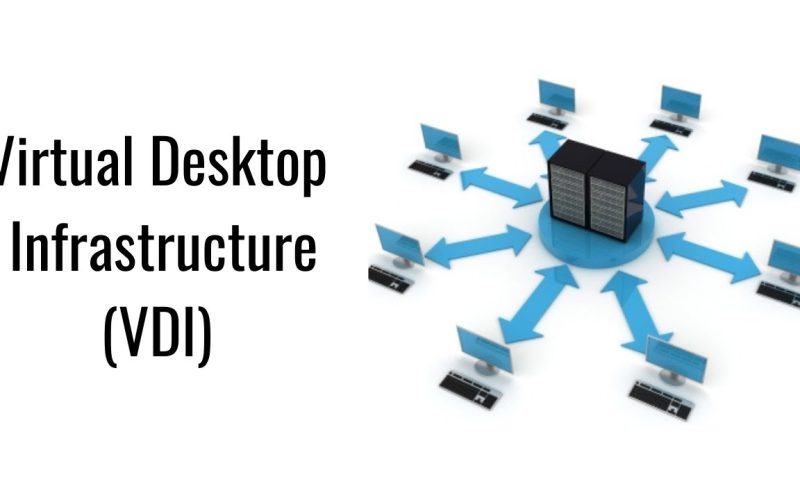
The idea behind what is called a Virtual Desktop In­frastructure (VDI) is to run desktop operating systems and applications inside virtual machines that reside on servers in the data center. Desktop operating sys­tems inside virtual machines are also referred to as virtual desktops. Users access the virtual desktops and applications from a desktop PC client or thin client and get almost the full features as if the applications were loaded on their local systems, with the difference being that the applications are centrally managed.

VDI provides the end user with a virtual PC that looks and behaves exactly like their current PC whether working at the office, while traveling or at home. The user’s profile and files are stored centrally so there is no need to carry around files

VDI Empowers Organizations?

Many companies have turned to virtualization tech­nologies for their servers and in their data centers to simplify administration and to reduce management chores and operating costs while maintaining reli­ability and safeguarding against disasters. Seeing the significant benefits virtualization delivers in those environments, companies are now looking to apply the same technology to their desktop computers. Here I am describing some of the benefits of VDI which accelerate the growth of the Organization

• VDI simplifies desktop administrative and management tasks

Virtual desktop infrastructures simplify desktop management and reduce the typical issues faced when dealing with distributed desktops. Any desktop user knows that maintaining a desktop is not an easy task. It is a chore to regularly update the operating system with security patches, upgrade the antivirus software, update the applications or fine-tune the desktop performance. Moreover, backing up and safeguarding the company’s data residing on the employee desktop becomes a nightmare with multiple employee desktops to maintain across the organization.

As a virtual desktop user in an organization deploying VDI, the employee is freed from these burdens as these tasks are shifted to trained IT staffs who manage the data centers where all the necessary company applications and data reside. IT staff is also freed from managing individual employee desktops. Desktop administration and management becomes simplified for a virtual desktop user.

• Users access virtual desktops running in the data center

A VDI enables employees to work remotely at home on their personal desktops while accessing a secure virtual desktop channel through the Internet.

An organization’s remote sales teams, mobile workers and field staff can take advantage of its VDI architecture to communicate securely on company-owned laptops, personal desktops, without compromising the company’s sensitive corporate data.

• Desktop security and data protection are centralized

Increases data security and compliance by reducing the risk of device and data being compromised. Data remains within the walls of the corporate data center instead of being widely distributed throughout branch offices, workstations, and mobile devices that are often lost or stolen.

In contrast, virtual desktops hosted in a data center can be run on servers with high availability features including redundant and hot swappable power sup­plies, fans, and storage disks. Such systems can help protect against downtime and have Increased Security on Company Data.

VDI Solutions

The Leading Desktop Virtualization options are:-

  • VMware View
  • Citrix Xen Desktop
  • Microsoft VDI Suite

I will describe more on the above VDI Solutions in my upcoming Blogs on VDI.

VN:F [1.9.6_1107]
Rating: 10.0/10 (2 votes cast)
VN:F [1.9.6_1107]
Rating: +2 (from 2 votes)

bijopg virtualization ,

Transparent Data Encryption In SQL Server 2008

August 2nd, 2010


As a Database or System Administrator, security is one of the most important areas to consider when it comes to protecting the databases that you support. We use various mechanisms and technologies to secure our data and databases such as firewalls, certificates, and data encryption. Having said that although we have secured our environment, questions will always be raised regarding database security. Although we have protected our databases, what would happen if someone steals the mdf file or if someone steals the backup file.

Although there are few ways to control this scenario using third-party solutions up until SQL Server 2008 there has been no native way to handle this problem. SQL Server 2008 introduces a new feature that protects the database called Transparent Data Encryption – TDE which provides protection to the entire database, that is Data is encrypted before it is written to disk; data is decrypted when it is read from disk. There is no need of changes in the application when it is implementing with existing applications that means there is no headache for developers!

Note: Applies Only to Microsoft SQL Server 2008 Enterprise Edition

I hope this article will guide you throughout the implementation of TDE in MSSQL SERVER 2008.

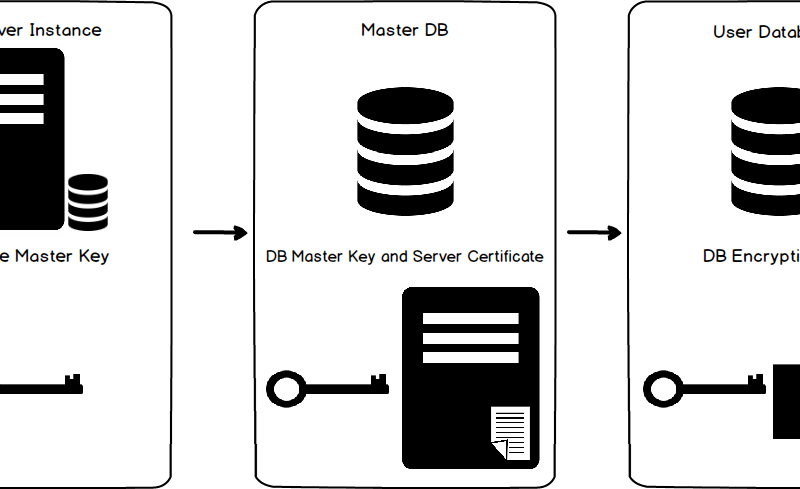
The diagram below shows how SQL Server encrypts a database with TDE:

Implementation of TDE

There are four steps included in Implementation of TDE

* Create a master key

* Create or obtain a certificate protected by the master key

* Create a database encryption key and protect it by the certificate

* Set the database to use encryption

1. Create a master key

A master key is a symmetric key that is used to create certificates and asymmetric keys.  Execute the following script to create a master key:

USE master;

CREATE MASTER KEY

ENCRYPTION BY PASSWORD = 'Pass@word1';
GO

2. Create Certificate
Certificates can be used to create symmetric keys for data encryption or to encrypt the data directly.  Execute the following script to create a certificate:


CREATE CERTIFICATE TDECert

WITH SUBJECT = 'TDE Certificate'

GO

3. Create a database encryption key and protect it by the certificate

1. Go to object explorer in the left pane of the MSSQL SERVER Management Studio

2. Right Click on the database on which TDE Requires

3. Click Tasks and Navigate to Manage Database Encryption

4. Select the encryption algorithm (AES 128/192/256) and select the certificate you have    created

5. Then Mark the check Box for Set Database Encryption On

You can query the is_encrypted column in sys.databases to determine whether TDE is enabled for a particular database.


SELECT [name], is_encrypted FROM sys.databases

You are Done !

VN:F [1.9.6_1107]
Rating: 9.0/10 (1 vote cast)
VN:F [1.9.6_1107]
Rating: +1 (from 1 vote)

bijopg Windows , , ,