Archive

Archive for July, 2010

How to connect to IM gateways through openfire

July 31st, 2010

The IM Gateway plugin for Openfire provides connectivity to other IM networks (AIM, ICQ, IRC, MSN, Yahoo, etc). It uses internal mechanisms to smooth the interaction with the various transports that standard transports can not currently provide. This plugin is called kracken im gateway plugin. It can be downloaded from the following link.


http://sourceforge.net/projects/kraken-gateway/

Openfire admin panel provides an option to upload new plugins into it. The file should be in .jar format.

.

Once the plugin file is uploaded it will be listed under plugin section in admin panel.

Next step is to select the networks that we want to connect from openfire. For that you need to go to Gateways in admin panel and select the gateways you want to connect to and its setttings.

Checking a gateway enables the service.

You can test the connection to the gateway network from the openfire server by clicking the ‘Tests’ link.

Also there is an option to specify the users who all are allowed to connect to the gateway service.

Next you need to do gateway service registration for a particular openfire user. For that click on “Registrations” in the left-hand menu. Then click on “Add a new registration.”

Here user is the openfire user which we want to connect to a gateway. Dropdown window for ‘gateways’ lists gateways we selected in one of the earlier steps. You can select the desired one from it. username and password should be corresponding gateway service account credentials. Here it should be login credentials of msn messanger.

You can associate all the gateway services, you want, to a particular openfire user by adding like this. Once you associate gateway services like this you can login into your openfire account through one of the clients, here i am using pidgin to connect to the openfire server. Once you login into openfire account through a client you may be able to see all the gateway services associated with that user are listed in the client.

Thus you will be able to login into all the associated gateways by just logging in to the openfire user account and you can have all your gateway services at once place.

VN:F [1.9.1_1087]
Rating: 0.0/10 (0 votes cast)
VN:F [1.9.1_1087]
Rating: 0 (from 0 votes)

Tino Thomas linux , , , , , , , ,

Puppet Configuration Management Tool

July 28th, 2010

Introduction

Puppet is a Ruby based Configuration Management System with client/server model and it was licensed under GPLv2 .It has one Master server puppetmasterd  and all other machines are configured as puppet clients . We set every configuration at the puppet server and then push them to all clients which are connected to the master. The client puppet correctly apply the corresponding configurations at the client regardless of their platform difference.

Puppet is a gift to the server administrators who need to manage large number of systems with different flavors of Gnu/Linux systems ,Mac, Solaris and other Unix Based systems.If we are managing it via remote administration then it would be a headache to the administrator and if the systems are different then the complexity will increase. Some accidental configuration changes may cause problems resulting in inconsistency working of the server. If we are using the puppet for the configuration management then it will be an one time implementation of these configurations only at puppet server, then we just duplicate it on different puppet clients with out any delay.

Another power of the puppet is, it using a Declarative Language to define configuration settings at the puppet master server. This language includes all major high level language features like Functions, Conditional Statements, Inheritance and other OOPs concepts. This feature makes the Puppet configurations settings are more readable, reusable and consistent when we compared with other configuration management tools like Cfengine.

Working

Puppet master server hold all clients configurations, each client will contact the server via port 8140 (by default). The connection between server and client are encrypted. The client will generate a self signed key before it will connect to server and will submit this self signed key to the master server and get the verified key back, here master server acts like a Certification Authority. After this process client will establish a encrypted session with server ,and get the configuration settings, compile and apply it on client system. The client will show an error if  there is any at the configuration definition when compiling. We can verify this at puppet server and client log file.

Here is the outline of puppet server and client Architecture

Puppet Architecture

Puppet Architecture

Installation

Before installing the puppet we need to setup some dependencies needed for puppet. First we need ruby with common library files(xml,ssl,etc.) installed, and facter, its an another ruby project to get all system informations, facter will be installed in all puppet clients. The puppet server get the client configuration settings and other system specific informations from the facter.

You can use the ruby’s inbuilt library management tool rubygem(rake) similar to CPAN for Perl to solve the dependency problems with libraries.

facter installation :-

Get latest version from www.reductivelabs.com


tar -zvf facter-<version>.tar.gz

cd facter

ruby install.rb

facter --version

puppet installation :-

If we are installing from the package manager there will be two packages, puppetd as the client and puppet-master as the puppet server, we need to install them both to setup client and server. If we are install form the source we can install both from the source code.

download latest package from the www.puppetlabs.com, then similar to facter installation,


tar -xzvf puppet-<latest version>;

cd puppet-<latest-version>;

ruby install.rb

This step will install the required packages for the puppet client and server. If you have any dependency problem then it will be most of the time due to the version mis match problem between ruby/puppet/facter, so select the version accordingly to avoid these types of errors.

By default the configuration files are listed under /etc/postfix and all others are at /var/lib/puppet  folder including log files.

Currently puppet support all major Unix like systems but not Windows.The latest versions of the puppet has introduced support to the windows systems too, by developing Windows specific facter tool to get Windows system informations and puppet.

How to configure Puppet server :-

After Successful installation of puppet master server and client, there are set of daemons associate with this package, it also provide command line utility to manage these daemons. They are,


puppetmasted   #Puppet Master Server

puppetd            #puppet Client.

puppetca           #Key management daemon

#and Set of other Utility commands.

The puppet  work with out creating configuration files explicitly, they are already pre-configured. But to start the interaction with clients we need to do some changes. Before that we can check the structure of the puppet configuration file.

Its a good practice maintaining an explicit puppet configuration file,the latest versions of puppet using single configuration file to manage every daemons. By default configuration files are comes under /etc/puppet. We save  all the configuration details of major daemons at /etc/puppet/puppet.conf.The puppet.conf using special type of configuration structure to include all daemons configuration details,described below,


#Cat /etc/puppet/puppet.conf

[main]

Here We specify Set of configurations default to all daemons.

[puppetmasterd]

Here comes the puppet master server configuration details.

[puppetd]

To include the Puppet client configurations.

[puppetca]

Configuration details of puppet key management tool.

To get all the parameters under each daemons and main section with its functional details, please refer this page

How to Connect Puppet Client with Puppet Server

To setup a client we  just have to install the puppet client version or every package in another system.Your master server is now capable to work as a puppet client also. At the master server we need to specify the set of configuration, that will guide how to change the configurations at clients.

Puppet server and client using Hostname to communicate with each other and also used to generate ssh key and key verification etc.., so we need a stable hostname resolution system (DNS or Local settings) in our network to ensure the proper connection between clients and server.Then after that select proper hostnames to your server and clients like,

puppet-server.com #For your Master Server

puppet-client1.com,puppet-client2.com,etc... #Your clients.

After the hostname allocation we need to start the server and client.Use command line options now to know the more about the interactions between client and server.

To start master server :-

 puppetmasterd --no-daemonize --logdest console

Then Start the puppet Client, specify the server name


puppetd --server puppet-server.com --verbose --waitforcert 30

At the client side we will get the following message with the information about the creation of self signed key and waiting for server verification.


Creating a new SSL key for puppet-client.com
Creating a new SSL certificate request for puppet-client.com
Certificate Request fingerprint (md5): 37:89:4E:86:C0:A7:5B:24:1A:E2:9B:85:83:90:0F:CE
Did not receive certificate

At the same time server side we will get the following message.


notice: Starting Puppet master version 2.6.0
notice: puppet-client.com has a waiting certificate request

To proceed further , at server side we need to verify this key from the puppet-client.com. For that we can use the key management tool puppetca.


puppetca --list  #To list the unverified requests.

puppetca --sign puppet-client.com  # To complete the verification process.

Now If we are restarting the puppet client with following command, you can see the client will immediately apply the configurations. You can check this from the log file or from the console if you are running the client in none daemonize mode.


puppetd --server puppet-server.com

Note:- If we are specify these settings at puppet.conf then you can just type the commands without any parameters to start appropriate daemons.

The Configuration Management

Last and very powerful feature of the puppet is, define the Client configurations. For that puppet using one Language which support most of the high level language constructs like OOPs. So lets try one simple configuration which change the permission of /etc/passwd file at all the clients connected with server to 640 and check Apache webserver installed or not , if not it will install it automatically.

These configuration specifications are defined under a file “/etc/puppet/manifests/site.pp” by default, we can split this file in to several files then include them at sites.pp.

Here is the sample site.pp file.


file { "password":
name => "/etc/passwd",
 owner => "root",
 group => "bin",
 mode => 644,
}

class apache {

package {       httpd: ensure => installed  }

service { "httpd":

name => $operatingsystem ? {
debian  => "apache2",
redhat  => "httpd",
default => "apache",
CentOS  => "httpd",
},
ensure => running,
require => Package["httpd"],
}
}

node 'puppet-client.com' {
include apache
}
#All other nodes which are not defined and matched with any definitions ,will use the follwing node definition.

node default {
case $operatingsystem {
CentOS: {include apache }
default: {}
}
}

Above file is the Puppet client configuration specification written in puppet declarative language.

Language have lot of constructs to define the resource and its properties.Using these constructs we managing the resources on client systems. The types of resources that puppet manages are listed bellow, and we can add our own customized resources to mange.

Type of Resources that puppet can manage by default:-

  • Files
  • Packages
  • Services
  • Corn Jobs
  • Users and Groups
  • To run Shell Commands
  • And User defined resource types

Each of the above resources have set of attributes or properties and values, using the puppet configuration language we can set the corresponding property values. The resource can defined by giving three main parameters ,Resource type name, then inside braces({}) title of the resource and set of property values. From above example, take the resource of type File with title name “password” inside that we have set of property values like name,owner,groups etc… so if a client successfully connect to server,the client puppet will apply these setting on client machine. If we change this property values, after next interval we can see the client will successfully apply it.

By this way we can control the resource configurations. In our networks there should be  different types of systems (Redhat,Debian,etc..),and they have some changes in the structure of the files and other package names, so here we need to apply the configurations based on the type of clients. The puppet provide Conditional statements (if and case ) to check and apply configurations depending on client architecture. For that we need some system information back to the client ,the facter will provide these datas. We can use that informations at the puppet configurations like a variable for eg: $operatingsystem (You can see all the informations that facter will provide by just typing the command facter at command prompt.)

Similarly we can specify the rules based on the client name, and using the OPPs constructs we can define the classes and reuse them with other client definitions, you can find some of them from  above example site.pp file.You can do a high level configuration design using puppet language. To learn more about the language constructs please check the puppet online wiki and one nice book  which describe every thing associated with Puppet by James Turnbull(Pulling Strings with Puppet.)

VN:F [1.9.1_1087]
Rating: 0.0/10 (0 votes cast)
VN:F [1.9.1_1087]
Rating: 0 (from 0 votes)

Haridas N linux , , , ,

Dynamic Agent Login in AsteriskNOW

July 21st, 2010

This blog explains how an agent can login to a queue directly through an extension. In asterisk’s terms an agent is human and an extension is device. Here an agent will be able to login into the queue through an extension by dialing a queue login number and you do not need to make any configurations in agents.conf or queues.conf.  For this setup to work properly, you need to have the correct dialplans in corresponding  extension files.

In the case of asteriskNOW, extension_additional.conf contains dialplans to handle  queue login.

[ext-queues]
exten => 5000*,1,Macro(agent-add,5000,)
exten => 5000**,1,Macro(agent-del,5000,5000)

If [macro-agent-add] and [macro-agent-del] contexts are already present in extensions_additional.conf you need to put the dialplans for these contexts in /etc/asterisk/extensions_override_freepbx.conf otherwise you can add the dialplans in /etc/asterisk/extensions_custom.conf.

[macro-agent-add]
include => macro-agent-add-custom
exten => s,1,Wait(1)
exten => s,n,Macro(user-callerid,SKIPTTL)
exten => s,n,Set(CALLBACKNUM=${AMPUSER})
exten => s,n,AddQueueMember(${ARG1},Local/${CALLBACKNUM}@from-internal/n)
exten => s,n,UserEvent(Agentlogin,Agent: ${CALLBACKNUM})
exten => s,n,Wait(1)
exten => s,n,Playback(agent-loginok&with&extension)
exten => s,n,SayDigits(${CALLBACKNUM})
exten => s,n,Hangup
exten => s,n,MacroExit()
exten => s,n(invalid),Playback(pbx-invalid)
exten => s,n,Goto(a3)

; end of [macro-agent-add]
[macro-agent-del]
include => macro-agent-del-custom
exten => s,1,Wait(1)
exten => s,n,Macro(user-callerid,SKIPTTL)
exten => s,n,Set(CALLBACKNUM=${AMPUSER})
exten => s,n,ExecIf($["${CALLBACKNUM}" = ""],Set,CALLBACKNUM=${CALLERID(number)})
exten => s,n,RemoveQueueMember(${ARG1},Local/${CALLBACKNUM}@from-internal/n)
exten => s,n,UserEvent(RefreshQueue)
exten => s,n,Wait(1)
exten => s,n,Playback(agent-loggedoff&with&extension)
exten => s,n,SayDigits(${CALLBACKNUM})
exten => s,n,Hangup
; end of [macro-agent-del]

In this dialplan 5000 is the queue number. You can use any queue number instead of it. To login to queue dial 5000* from your phone (either a softphone like xlite or a hard phone like Linksys) and you will hear a login confirmation and to logout from the queue you need to dial 5000** as per the dial plan. The advantage of this method is that an agent can do a login or logout by just dialing the corresponding number. Once logged in we can check current members in the queue using the command.

From shell
#asterisk -rx "queue show 5000"   (5000 is the queue number)
From asterisk CLI
> queue show 5000
VN:F [1.9.1_1087]
Rating: 0.0/10 (0 votes cast)
VN:F [1.9.1_1087]
Rating: 0 (from 0 votes)

Tino Thomas linux , , , , , , ,

How to customize call recording location in asteriskNOW

July 20th, 2010

Customize call recording location in asteriskNow.

By default AsteriskNOW saves call recordings under the directory /var/spool/asterisk/monitor. This way of call recording has got some disadvantages since number of files can grow beyond a limit . You will find it difficult to recognize call recordings related to a particular extension. A solution to this issue is to customize the call recording location. You need to override the dialplan for the context [macro-record-enable] present in /etc/asterisk/extensions_additional.conf. To override these dialplans you need to add new dialplan in a file called /etc/asterisk/extensions_override_freepbx.conf.  Following is the default dialplan for the context [macro-record-enable] present in /etc/asterisk/extensions_additional.conf.


[macro-record-enable]
include => macro-record-enable-custom
exten => s,1,GotoIf($["${BLINDTRANSFER}" = ""]?check)
exten => s,n,ResetCDR(w)
exten => s,n,StopMixMonitor()
exten => s,n(check),AGI(recordingcheck,${STRFTIME(${EPOCH},,%Y%m%d-%H%M%S)},${UNIQUEID})
exten => s,n,MacroExit()
exten => s,1+998(record),MixMonitor(${MIXMON_DIR}${CALLFILENAME}.${MIXMON_FORMAT},,${MIXMON_POST})
; end of [macro-record-enable]

You need to add the following dialplan in /etc/asterisk/extensions_override_freepbx.conf, which will override the above dialplan to customize the call recording location.


[macro-record-enable]
include => macro-record-enable-custom
exten => s,1,GotoIf($["${BLINDTRANSFER}" = ""]?check)
exten => s,n,ResetCDR(w)
exten => s,n,StopMixMonitor()
exten => s,n(check),AGI(recordingcheck,${STRFTIME(${EPOCH},,%Y%m%d-%H%M%S)},${UNIQUEID})
exten => s,n,MacroExit()
exten => s,n(record),System(/bin/mkdir -p /var/spool/asterisk/monitor/freepbx/${STRFTIME(${EPOCH},,%Y)}/${STRFTIME(${EPOCH},
,%m)}/${STRFTIME(${EPOCH},,%d)}/${ARG1}/${UNIQUEID})
exten => s,n,MixMonitor(/var/spool/asterisk/monitor/freepbx/${STRFTIME(${EPOCH},,%Y)}/${STRFTIME(${EPOCH},,%m)}/${STRFTIME($
{EPOCH},,%d)}/${ARG1}/${UNIQUEID}/${CALLFILENAME}.${MIXMON_FORMAT},,${MIXMON_POST})

The changes made are

exten => s,n(record),System(/bin/mkdir -p /var/spool/asterisk/monitor/freepbx/${STRFTIME(${EPOCH},,%Y)}/${STRFTIME(${EPOCH},
,%m)}/${STRFTIME(${EPOCH},,%d)}/${ARG1}/${UNIQUEID})

Here we are using ‘System’ command to create directories during the call recording. Inside the system command we can execute the unix shell commands. Here we used ‘mkdir’ command to create directories followed by a number of variables in asterisk. Here ‘STRFTIME’ used to get the year, month & date . ${ARG1} used to get the asterisk user extension ,who is participating in that call ;${UNIQUEID} to get the unique id of that call. UNIQUEID is assigned by asterisk and it is the unix time of orgination of that call.

<pre>exten => s,n,MixMonitor(/var/spool/asterisk/monitor/freepbx/${STRFTIME(${EPOCH},,%Y)}/${STRFTIME(${EPOCH},,%m)}/${STRFTIME($
{EPOCH},,%d)}/${ARG1}/${UNIQUEID}/${CALLFILENAME}.${MIXMON_FORMAT},,${MIXMON_POST})</pre>

In succeeding priority we use MixMonitor command to record the conversations in that channel. The format of MixMonitor command is MixMonitor(<file>.<ext>[|<options>[|<command>]]). Here in the ‘filename’ field we will give path of created directory in the preceding line.

Once you made the above changes you need to reload the dialplan through either of the following two ways.

from shell

#asterisk -rx “dialplan reload”

from asterisk CLI

> dialplan reload

VN:F [1.9.1_1087]
Rating: 0.0/10 (0 votes cast)
VN:F [1.9.1_1087]
Rating: 0 (from 0 votes)

Tino Thomas linux , , , , , , ,

How to install AsterCRM and integrate it with external CRM

July 19th, 2010

1) Download and unzip the source (assuming your WEB root is /var/www/html)

Get the software from


http://astercc.org/downloads
cd /var/www/html

unzip astercc-X.X.zip

mv astercc-X.X astercc

/var/www/html/astercc/astercrm                 # main directory and PHP scripts  of astercrm
/var/www/html/astercc/asterbilling              #  main directory and PHP scripts of asterbilling
/var/www/html/astercc/sql                          # sql to create database  tables
/var/www/html/astercc/script                      # astercc  daemon and some other script files
/var/www/html/astercc/index.html               #guide page
/var/www/html/astercc/astercc_full_logo.png  #logo

2) It is highly advised that the whole script directory be moved to a more secure location like /opt and out of the WEB root directory


mkdir -p /opt/asterisk/scripts/astercc
mv  /var/www/html/astercc/scripts/*  /opt/asterisk/scripts/astercc
chmod +x /opt/asterisk/scripts/astercc/*

3) Create the MySQL database and tables, asterCRM need mysql 4.1 or above

Note: here we create the database named astercc, it both used for astercrm and asterbilling, you could use whatever db name you want use your configration to replace “yourmysqluser” and “yourmysqlpasswd”


mysqladmin -uyourmysqluser  -pyourmysqlpasswd create astercc
mysql -uyourmysqluser  -pyourmysqlpasswd astercc < /var/www/html/astercc/sql/astercc.sql

4) Update /etc/asterisk/manager.conf to enable Manager connections

Note:allow asterisk on different server .Add something like this to the manager.conf file:


[general]
enabled = yes
port = 5038
bindaddr = 0.0.0.0
;displayconnects = yes

;the following line could be  changed by yourself
[astercc]
secret = astercc
read = system,call,log,verbose,command,agent,user
write =  system,call,log,verbose,command,agent,user
deny=0.0.0.0/0.0.0.0
; if you want to run astercc on another  server
; use your astercc ip to replace 127.0.0.1 or add a  new line
permit=127.0.0.1/255.255.255.0

5) Modify config file

for asterCRM:
modity /var/www/html/astercc/astercrm/astercrm.conf.php to fit your configration
for asterCC:
modity /var/www/html/astercc/asterbilling/asterbilling.conf.php to fit your configration

6) Start Asterisk and daemon

There are two daemon modes you can choose, astercc mode or eventsdaemon(can be used for astercrm only) mode.

A) For astercc mode(can be used for both astercrm and asterbilling.

try start astercc:
modify /opt/asterisk/scripts/astercc/astercc.conf to fit your configuration mainly database setting and AMI setting.

run astercc for test


/opt/asterisk/scripts/astercc/astercc

if you could read like following line:


"Connecting to mysql database on  127.0.0.1:
Database connection successful.
Connecting to asterisk on 127.0.0.1 port 5038:
Asterisk socket connection successful.
Check  asterisk username & secret:
Success
Monitor Start:
...(some log message)..."

congratulations, your astercc works well, use 'ctrl + c' to exit
or else, please check your database/AMI configration in astercc.conf

Start up astercc (default settings):
modify /var/www/html/astercrm/astercrm.conf.php set eventtype to curcdr


/opt/asterisk/scripts/astercc/astercc -d

Start up astercc daemons when system startup:
Note: This option can only fit to redhat-release system. If you want astercc daemons to start automatically when you boot your machine, you need to :


cp /opt/asterisk/scripts/astercc/asterccd  /etc/rc.d/init.d
chmod 755 /etc/rc.d/init.d/asterccd
chkconfig --add asterccd

Advice: Configure your astercc restart once everyday, it’s not necessary, but it ’s good for your astercc operation. for example: you want to restart astercc at 0′clock everyday, just do the following line as root.


crontab -e
add a new  line:
0 0 * * * /etc/rc.d/init.d/asterccd restart
the first "0" figures minutes and the second "0" figures hours.

B) For eventsdaemon mode(can be used for astercrm only) try start eventsdaemon:
modify eventsdaemon.pl to fit your configuration mainly database setting and AMI setting.

/opt/asterisk/scripts/astercc/eventsdaemon.pl
if you could  read:

"Message: Authentication accepted"

congratulations,  your eventsdaemon works well
use ctrl + c to exit
or else, please check your database/AMI configration in eventsdaemon.pl

Start eventsdaemon (default settings):
modify astercrm.conf set eventtype to event


/opt/asterisk/scripts/astercc/eventsdaemon.pl -d

At some point it may be desirable to delete unwanted events from the database table. The eventsdaemon is also designed for this. please check eventsdaemon.pl for parameter “log_life” .also we provide a “watch dog”, it would help you restart eventsdaemon when it shutdown add this shell to your start-up file, for example:


echo /opt/asterisk/scripts/astercc/eventdog.sh >>  /etc/rc.d/rc.local

so that everytime your server start, eventsdaemon would be loaded

7) Set file & folder access for astercrm

chmod 777 /var/www/html/astercc/astercrm/upload
chmod 777 /var/www/html/astercc/astercrm/astercrm.conf.php

If asterisk and astercrm running in one server, you could make a soft link to astercrm web directory for listening monitor records online.
ln -s /var/spool/asterisk/monitor/ /var/www/html/astercc/astercrm/monitor
note: astercrm support listen monitors online only can be wav format file.

8 ) Web browsing

For astercc:


http://localhost/astercc

or  http://YOUR-WEB-SERVER-ADDRESS/astercc

For astercrm:


http://localhost/astercc/astercrm

or  http://YOUR-WEB-SERVER-ADDRESS/astercc/astercrm

login with admin/admin

Integration of External CRM With AsterCRM

In your astercrm, go to
Manager-> preference

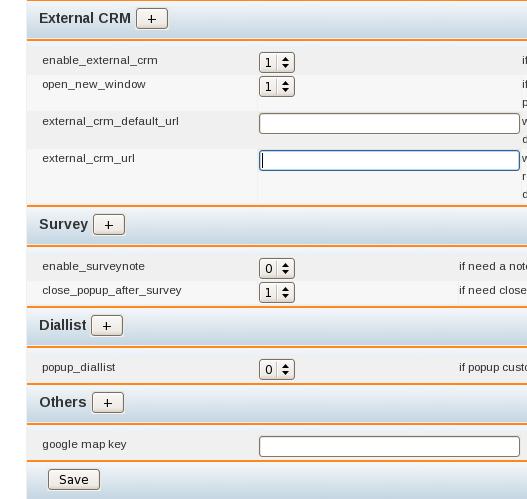
If asterCRM use external CRM software, change the value of enable_external_crm to 1. When using external CRM, the default page to be displayed is specified in external_crm_default_url .Value of external_crm_url specifies, when asterCRM need to pop up, which url would recevie the event, %callerid: %calleeid: %method dialout or dialin. Save the changes made by clicking Save button.

VN:F [1.9.1_1087]
Rating: 0.0/10 (0 votes cast)
VN:F [1.9.1_1087]
Rating: 0 (from 0 votes)

Tino Thomas linux , , , , , , ,

What is Video Streaming

July 13th, 2010

Video stream servers are meant to provide the video content across internet in reliable and generic way so that any client can access easily. They uses diffrent protocols other than http namely rtsp, rtmp, rtp etc. And these protocols mainly uses udp. A basic video streaming system contains 3 components. A video publishing side, The video streaming server and the client side player (usually flash player embedded in the webpage). The video publishing system will upload a live or static video content to the Video Stream Server and the video stream sever will broadcast (means streaming)  that uploaded video such that the clients can view the videos without bothering about any codecs. The video uploading system should have an encoder to publish live contents to the server. The encoder does the process of transcoding to provide the content to the desired format of the stream server.

Major stream server applications are Wowza Media Server, Adobe Flash Media Server, Red5:open source flash server, Darwin Streaming server (open source) etc.

Working
Actual work flow when a web client is accessing stream video from a website is deiscribed in the figure. When the user clicks on a particular video icon the web server passes a request to the stream server. It will also notify the information about the client side  player (usually it will be a flash player application). Because the if it is a flash client then the request sent will be rtmp (Real Time Messaging Protocol ) protocol based. The stream server will stream (send the video packets) video based on rtmp protocol for flash players. For client players like vlc, apple quick-time etc  the protocol used is rtsp (Real Time Streaming Protocol).

A video streaming setup contains 3 components they are

  1. Video Stream server
  2. Web server for providing a web interface to the clients
  3. The flash player embedded on the web page (Or stand alone players like vlc, quicktime etc if not accessing through the site).

If the video server streams a live video then one publishing site will be there which will provide the  the live video source. Figure 2 illustrates such a video stream server setup. A video Streaming server application would be running on the Streaming server. The broadcaster would use an live  encoding tool (eg: flash live media encoder). If the client is accessing the video on an html web page the player might be adobe flash player. Flash offers online broadcasters a platform rich with unmatchable flexibility and superior quality video delivery. Flash has fast become the standard for delivery of rich-media over the internet. TV and Video Broadcasters and a wide variety of content creators around the globe have chosen Flash as their No. 1 streaming format.

Live video stream setup

If the video server streams a live video then one publishing site will be there which will provide the the live video source. Figure 2 illustrates such a video stream server setup. A video Streaming server application would be running on the Streaming server. The broadcaster would use an live encoding tool (eg: flash live media encoder). If the client is accessing the video on an html web page

the player might be adobe flash player. Flash offers online broadcasters a platform rich with unmatchable flexibility and superior quality video delivery. Flash has fast become the standard for delivery of rich-media over the internet. TV and Video Broadcasters and a wide variety of content creators around the globe have chosen Flash as their No. 1 streaming format.

VN:F [1.9.1_1087]
Rating: 0.0/10 (0 votes cast)
VN:F [1.9.1_1087]
Rating: 0 (from 0 votes)

Jaseer Articles, general , , , ,