Archive

Archive for April, 2009

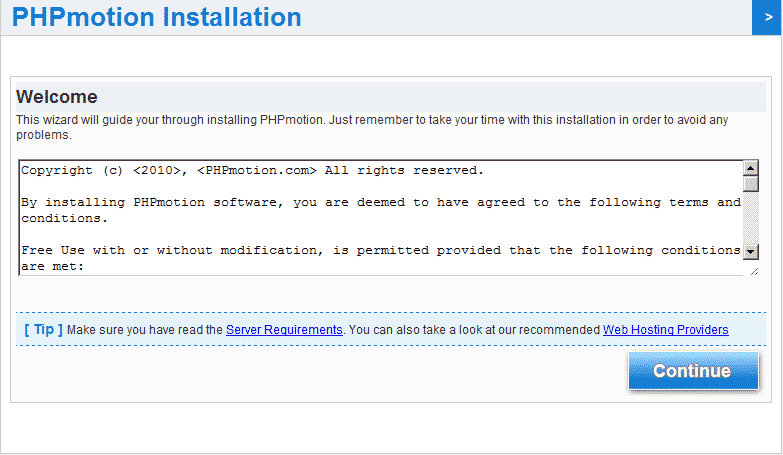
phpmotion install script

April 29th, 2009

Sparksupport offers you the script to install phpmotion in your root folder or subfolder. Copy paste this script to a file name of your like and execute with the command sh filename. You should answer the questions asked during the execution of the script.

Requirements:

Cpanel Server
Root access


#!/bin/bash
#Copyright @2009 SparkSupport
################
home="/home"
phpconf="/usr/local/apache/conf/php.conf"
#################

scriptfile=`basename $0`
dbsuffix=`mkpasswd -l 3 -s 0 -d 0 -c 0 -C 0`
randompass=`mkpasswd -l 6 -s 0 -d 2`
if ! [ $? ]
then
        echo "Newer version required: mkpasswd"
        rm -f $scriptfile
        exit 1
fi

echo -n "Enter domain name :"
read domain
echo -n "Enter username :"
read user
#echo -n "Enter email address: "
#read email

echo -n "If installation is in default document root press "Enter" or else specify
sub folder :"
read subfolder

if [ -n $subfolder ]
then
        BDIR="$home/$user/public_html/$subfolder"
        [ -d $home/$user/public_html ] && mkdir $BDIR
else
        BDIR="$home/$user/public_html"
fi

if [ -d $BDIR ]
then
        cd $BDIR
        wget http://downloads.phpmotion.com/V2.1/PHP5.zip
        if [ -e PHP5.zip ]
        then
                unzip PHP5.zip
                cp -ar PHP5/PHPmotion/* .
                chown -R $user.$user $BDIR
                chown $user.nobody "$home/$user/public_html"
                rm -f PHP5.zip
                if [ -n $subfolder ]
                then
                        sed -i '/temp_dir/ s#/temp/#/'$subfolder'/temp/#' cgi-bin/{audio,}/uu_default_config.pm
                        sed -i '/upload_dir/ s#/uploads/avi/#/'$subfolder'/uploads/avi/#' cgi-bin/{audio,}/uu_default_config.pm
                        sed -i '/redirect_url/ s#/uploader_finished.php#/'$subfolder'/uploader_finished.php#' cgi-bin/{audio,}/uu_default_config.pm
                        sed -i '/path_to_upload/ s#/uploads/avi/#/'$subfolder'/uploads/avi/#' cgi-bin/{audio,}/uu_default_config.pm
                        sed -i '/path_to_upload_script/ s#/cgi-bin/#/'$subfolder'/cgi-bin/#' uploader_conlib.php audio_uploader_conlib.php
                        sed -i '/path_to_ini_status_script/ s#/cgi-bin/#/'$subfolder'/cgi-bin/#' uploader_conlib.php audio_uploader_conlib.php
                fi
                if ! grep -q suphp_module $phpconf
                then
                        echo -n "Fixing permissions .. "
                        chmod 777 setup pictures classes temp logs addons uploads uploads/{avi,thumbs,audio,audio/temp,pictures}
                        chmod 755 cgi-bin/* cgi-bin/audio/*
                        echo ".. done"
                fi
                echo -n "Adding mysql db and user .. "
                /scripts/mysqladduserdb ${user}_pm${dbsuffix} $randompass
                echo ".. done"
        else
                echo "Could not fetch PHP5.zip .. try later"
                rm -f $scriptfile
                exit 1
        fi
else
        echo "Folder does not exist : $BDIR"
        rm -f $scriptfile
        exit 1
fi

echo  "Go to http://$domain/setup or  http://$domain/$subfolder/setup"
echo "################### USE THE FOLLOWING DETAILS ################"
echo  "UserName : ${user}_pm${dbsuffix}"
echo  "DbName   : ${user}_pm${dbsuffix}"
echo  "Password : $randompass"
echo "##############################################################"
rm -f $scriptfile

VN:F [1.9.6_1107]
Rating: 5.0/10 (6 votes cast)
VN:F [1.9.6_1107]
Rating: 0 (from 0 votes)

admin general, linux

uu_upload.pl download prompt

April 29th, 2009

I happen to see this uu_upload.pl download prompt error when installing phpmotion on a subfolder. This is because Apache doesn’t understand this perl file in cgi-bin.

Here is a fix which worked for me

Create a .htaccess file in cgi-bin of the subfolder and add the entry


  Options +ExecCGI
 AddHandler cgi-script .pl  

This error can also happen if you haven’t given the correct path for cgi-bin in uploader_conlib.php file


     $path_to_upload_script      = '/myvideos/cgi-bin/uu_upload.pl';
     $path_to_ini_status_script  = '/myvideos/cgi-bin/uu_ini_status.pl'; 

myvideos replace it with subfolder name.

VN:F [1.9.6_1107]
Rating: 6.6/10 (7 votes cast)
VN:F [1.9.6_1107]
Rating: -1 (from 1 vote)

Shijil T S general, linux

video not converting

April 29th, 2009

Hi

Its common that video files are not getting converted into flv format for streaming. This can be caused due to deprecated option that is still used for mencoder in the scripts of phpmotion and clipshare. All you have to do is to replace the existing options with the latest one in the convertor.php file of these scripts. I will give you a easy approach to accomplish this.

copy paste the sample code to a file named fixscript.sh in your home directory below public_html

find . ( -name "*.php" -or  -name "*.html" ) -exec grep -l "-lavfopts i_certify_that_my_video_stream_does_not_use_b_frames -vop" {} ; |xargs -d 'n'  sed -i -e 's/-lavfopts i_certify_that_my_video_stream_does_not_use_b_frames -vop/ -ofps 24 -vf/g'
find . ( -name "*.php" -or  -name "*.html" ) -exec grep -l "-lavfopts i_certify_that_my_video_stream_does_not_use_b_frames" {} ; |xargs -d 'n'  sed -i -e 's/-lavfopts i_certify_that_my_video_stream_does_not_use_b_frames/ -ofps 24/g' 

chmod it to 755 and execute the script by the command

sh fixscript.sh

if you get sed no input file, there is nothing to worry it means that there is no file that requires the change, it can be a newer version and doesn’t needs it.

there you go !! video conversion should be working now..

VN:F [1.9.6_1107]
Rating: 5.5/10 (2 votes cast)
VN:F [1.9.6_1107]
Rating: 0 (from 0 votes)

Shijil T S general, linux , ,

nginx wordpress permalink

April 29th, 2009

As you are aware nginx don’t read .htaccess rewrite rule nginx has its own rewrite rule. WordPress has already embraced nginx, wordpress.com works with nginx. There will be problems if you enable permalink option in wordpress nginx. Here is the workaround for it.

You can find permalink option at

Login as wordpress admin
Click on settings -> permalinks
Custom Structure /%postname%/   # This is the one I am using you can opt any other which is given as example in that page.

Now goto wp-content/plugin directory of your wordpress installation

 wget http://downloads.wordpress.org/plugin/nginx-compatibility.0.1.1.zip 

unzip it in the plugin directory
Now go to admin settings and activate this plugin. Permalink should be working now. Mind you if you have installed wordpress on a separate folder your
“location /” in nginx should look something like the below

   location / {
        root /home/user/public_html;      #replace user with actual username
        index index.html index.htm index.php;
if ($request_uri ~* ^.*/.*$) {
     rewrite ^/(w*)/(.*)$ /$1/index.php?q=$2 last;
     break;
}
}

A working example is this blog itself :)

VN:F [1.9.6_1107]
Rating: 5.8/10 (9 votes cast)
VN:F [1.9.6_1107]
Rating: -2 (from 2 votes)

Shijil T S linux, Webservice

startup scripts for nginx

April 28th, 2009

Startup script for nginx that can be used for centos. Save the below code in a file named nginx in /etc/init.d/. Chmod its permission to 755.

Also make sure that you give the correct path for your conf file in NGINX_CONF_FILE and of the nginx binary location.


#!/bin/sh
#
# nginx - this script starts and stops the nginx daemin
#
# chkconfig:   - 85 15
# description:  Nginx is an HTTP(S) server, HTTP(S) reverse
#               proxy and IMAP/POP3 proxy server
# processname: nginx
# config:      /usr/local/nginx/conf/nginx.conf
# pidfile:     /usr/local/nginx/logs/nginx.pid

# Source function library.
. /etc/rc.d/init.d/functions

# Source networking configuration.
. /etc/sysconfig/network

# Check that networking is up.
[ "$NETWORKING" = "no" ] && exit 0

nginx="/usr/local/sbin/nginx"
prog=$(basename $nginx)

NGINX_CONF_FILE="/usr/local/nginx/conf/nginx.conf"

lockfile=/var/lock/subsys/nginx

start() {
    [ -x $nginx ] || exit 5
    [ -f $NGINX_CONF_FILE ] || exit 6
    echo -n $"Starting $prog: "
    daemon $nginx -c $NGINX_CONF_FILE
    retval=$?
    echo
    [ $retval -eq 0 ] && touch $lockfile
    return $retval
}

stop() {
    echo -n $"Stopping $prog: "
    killproc $prog -QUIT
    retval=$?
    echo
    [ $retval -eq 0 ] && rm -f $lockfile
    return $retval
}

restart() {
    configtest || return $?
    stop
    start
}

reload() {
    configtest || return $?
    echo -n $"Reloading $prog: "
    killproc $nginx -HUP
    RETVAL=$?
    echo
}

force_reload() {
    restart
}

configtest() {
  $nginx -t -c $NGINX_CONF_FILE
}

rh_status() {
    status $prog
}

rh_status_q() {
    rh_status >/dev/null 2>&1
}

case "$1" in
    start)
        rh_status_q && exit 0
        $1
        ;;
    stop)
        rh_status_q || exit 0
        $1
        ;;
    restart|configtest)
        $1
        ;;
    reload)
        rh_status_q || exit 7
        $1
        ;;
    force-reload)
        force_reload
        ;;
    status)
        rh_status
        ;;
    condrestart|try-restart)
        rh_status_q || exit 0
            ;;
    *)
        echo $"Usage: $0 {start|stop|status|restart|condrestart|try-restart|reload|force-reload|configtest}"
        exit 2
esac
VN:F [1.9.6_1107]
Rating: 6.7/10 (3 votes cast)
VN:F [1.9.6_1107]
Rating: 0 (from 0 votes)

Shijil T S linux, Webservice ,

kernel 2.6 compile steps

April 28th, 2009

I decided to compile my own kernel for my centos.Here are the steps I have followed and which worked without any errors.

Goto kernel.org for the list of kernel source available

http://kernel.org/pub/linux/kernel/v2.6/ 

Download the one you like to the directory /usr/src

If you are using wget and by chance you got disconnected and if you wanted to continue from the last point you stopped use the command with -c option

wget -c [kernelsourceurl]

You can also apply the patch which can be downloaded from this Index page of kernel source. Applying patch is little bit tricky, another interesting thing I noticed is the revert function if you have already applied the patch, here are the steps

normally patch comes in bzip or gzip format, use the command bunzip2 or gunzip to extract the patch you can also do without extracting it but lets do it straight. First goto the extracted source directory of the kernel

/usr/src/kernel-2.6

patch -p1 < .../patch-2.6  #this ../patch-2.6 is the exact path of patch file 

and in order revert the patch use the command

patch -R -p1 < ../patch-2.6

Now start the steps for compilation


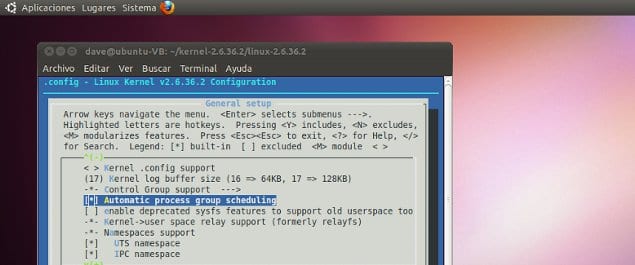
make menuconfig #select the options you want
make
make_modules
make install      #this will ensure that bzImage is copied, initrd image is made and the grub.conf is edited.

In order to boot the new kernel you need to edit default=0 in grub.conf but since you are unsure that it will work or not you can do a workaround to boot your compiled only once, that means in the next boot if the compiled kernel didn’t comes up you again do a reboot and then the previous kernel will be loaded.

Issue following commands

grub --no-floppy

and at the grub prompt

grub>savedefault --default=0 --once

If the new kernel boots up without any error you can edit the grub.conf to make this new kernel as the default one permanently.

VN:F [1.9.6_1107]
Rating: 5.8/10 (6 votes cast)
VN:F [1.9.6_1107]
Rating: 0 (from 0 votes)

Shijil T S general, linux ,

named capset failed

April 27th, 2009

Today I have come across an error when starting named service in cpanel. I could fix it by inserting the modules to the kernel using modprobe command.

 modprobe capability
modprobe commoncap
VN:F [1.9.6_1107]
Rating: 7.2/10 (6 votes cast)
VN:F [1.9.6_1107]
Rating: 0 (from 0 votes)

admin general, linux

random password generator

April 23rd, 2009

I was searching in google how to generate random password and got two good easy to use methods.

First one is the most simplest one

 uuidgen -r | cut -c-8 or uuidgen -t | cut -c-8  

The -r option is for random based uuid generation with help of /dev/random and -t uses system clock plus ethernet address.

Second method is to call a function

function randompass {
        pass= /dev/null 2>&1 || head -c 7)
        echo $pass
} 

now you can call this function in the shell script by just typing the name of the function “randompass”

VN:F [1.9.6_1107]
Rating: 6.2/10 (5 votes cast)
VN:F [1.9.6_1107]
Rating: 0 (from 0 votes)

admin general, linux ,

zlibVersion, version libmysqlclient_15 not defined in file libmysqlclient.so.15

April 16th, 2009

Hi,

I have come across this strange error after installing php-fpm for nginx.

 zlibVersion, version libmysqlclient_15 not defined in file libmysqlclient.so.15

From the error it was clear that there is a version mismatch that is defined for ZlibVersion in libmysqlclient.so.15. So next step was to find out which all libmysqlclient.so files are there in the server. Since I was not sure about the path of libmysqlclient locate was my command but before that I should update my database.

root@server1 [~]# updatedb &
root@server1 [~]# locate libmysqlclient.so

and the result was like this.

/usr/lib/libmysqlclient.so
/usr/lib/libmysqlclient.so.15
/usr/lib/libmysqlclient.so.15.0.0
/usr/lib/libmysqlclient.so.6
/usr/lib/mysql/libmysqlclient.so
/usr/lib/mysql/libmysqlclient.so.15
/usr/lib/mysql/libmysqlclient.so.15.0.0

Now I had removed the link file /usr/lib/libmysqlclient.so.15 and relinked to /usr/lib/libmysqlclient.so.15.0.0

by the command

root@server1 [~]#  ln -s /usr/lib/libmysqlclient.so.15.0.0 /usr/lib/libmysqlclient.so.15

Now issue php -V command you will see the error vanished.

VN:F [1.9.6_1107]
Rating: 2.0/10 (2 votes cast)
VN:F [1.9.6_1107]
Rating: -2 (from 2 votes)

admin general, linux ,

Using FreeBSD ports and packages

April 11th, 2009

FreeBsd Ports/Packages

New to FreeBsd and only familiar with RPM ? This will article will guide you through how to install third-party applications and system tools using ports and packages

Ports

Port is a technology used to install from source.

Each Port is a collection of scripts that when executed, automatically download source of softwares from the Internet, patches, configures if necessary, compiles and install it. Any dependencies on other applications or libraries a port may have are also installed for the user.

Each port, or software package, is maintained by a “port maintainer”, an individual who is responsible for staying current with the latest software developments. Anyone is welcome to become a port maintainer by contributing their favorite piece of software to the collection. One may also choose to adopt and maintain an existing port that has no maintainership.

Packages

Packages is another techInology used to install from pre-built binaries.
For any given application, the FreeBSD package for that application is a single file which you must download. The package contains pre-compiled copies of all the commands for the application, as well as any configuration files or documentation. A downloaded package file can be manipulated with FreeBSD package management commands, such as pkg_add, pkg_delete, pkg_info, and so on. Installing a new application can be carried out with a single command.

Both packages and ports understand dependencies. Suppose you want to install an application that depends on a specific library being installed. Both the application and the library have been made available as FreeBSD ports and packages. If you use the pkg_add command or the ports system to add the application, both will notice that the library has not been installed, and automatically install the library first.

Given that the two technologies are quite similar, you might be wondering why FreeBSD bothers with both. Packages and ports both have their own strengths, and which one you use will depend on your own preference.

Find your application to Install

Suppose you want to install lsof using port
If you know the exact name of the port, but just need to find out which category it is in, you can use the whereis command. Simply type whereis file, where file is the program you want to install. If it is found on your system, you will be told where it is, as follows:


# whereis lsof

lsof: /usr/ports/sysutils/lsof

This tells us that lsof (a system utility) can be found in the
/usr/ports/sysutils/lsof directory.

Yet another way to find a particular port is by using the Ports Collection’s built-in search mechanism. To use the search feature, you will need to be in the /usr/ports directory. Once in that directory, run make search name=program-name where program-name is the name of the program you want to find. For example, if you were looking for lsof:


# cd /usr/ports

# make search name=lsof

Port:   lsof-4.56.4

Path:   /usr/ports/sysutils/lsof

Info:   Lists information about open files (similar to fstat(1))

Maint:  obrien@FreeBSD.org

Index:  sysutils

B-deps:

R-deps:

For in-depth searching you can also use make search key=string where string is some text to search for. This searches port names, comments, descriptions and dependencies and can be used to find ports.

To begin, change to the directory for the port you want to install:


# cd /usr/ports/sysutils/lsof

Once inside the lsof directory, you will see the port skeleton. The next step is to compile, or “build”, the port. This is done by simply typing make at the prompt. Once you have done so, you should see something like this:


# make

>> lsof_4.57D.freebsd.tar.gz doesn't seem to exist in /usr/ports/distfiles/.

>> Attempting to fetch from ftp://lsof.itap.purdue.edu/pub/tools/unix/lsof/.

===>  Extracting for lsof-4.57

...

[extraction output snipped]

...

>> Checksum OK for lsof_4.57D.freebsd.tar.gz.

===>  Patching for lsof-4.57

===>  Applying FreeBSD patches for lsof-4.57

===>  Configuring for lsof-4.57

...

[configure output snipped]

...

===>  Building for lsof-4.57

...

[compilation output snipped]

Notice that once the compile is complete you are returned to your prompt. The next step is to install the port. In order to install it, you simply need to tack one word onto the make command, and that word is install:


# make install

===>  Installing for lsof-4.57

...

[installation output snipped]

...

===>   Generating temporary packing list

===>   Compressing manual pages for lsof-4.57

===>   Registering installation for lsof-4.57

===>  SECURITY NOTE:

      This port has installed the following binaries which execute with

      increased privileges.

It is always good idea to delete the working directory.


# make clean

===>  Cleaning for lsof-4.57

Note: You can save two extra steps by just running “make install clean” instead of make, make install and make clean as three separate steps.
This is how you install a utility using ports now you need to know more about Packages before we proceed with Ports.

How to use Package system

Install a package

You can use the pkg_add utility to install a FreeBSD software package from a local file or from a server on the network.


# pkg_add -r lsof

This will cause the utility to automatically determine the correct object format and release and then fetch and install the package from an FTP site. If you want to some alternative FreeBSD Packages Mirror, instead of the main distribution site, you have to set PACKAGESITE accordingly.
It is possible to change this behavior by overriding the PACKAGESITE environment variable. For example, if you run a FreeBSD 5.4-RELEASE system, by default pkg_add will try to fetch packages from


ftp://ftp.freebsd.org/pub/FreeBSD/ports/i386/packages-5.4-release/Latest/. If you want to force pkg_add to download FreeBSD 5-STABLE packages,
set PACKAGESITE to ftp://ftp.freebsd.org/pub/FreeBSD/ports/i386/packages-5-stable/Latest/

Managing Packages


pkg_info is a utility that lists and describes the various packages installed.

cvsup-16.1          A general network file distribution system optimized for CV

docbook-1.2         Meta-port for the different versions of the DocBook DTD

pkg_version is a utility that summarizes the versions of all installed packages. It compares the package version to the current version found in the ports tree.

The symbols in the second column indicate the relative age of the installed version and the version available in the local ports tree.

Symbol Meaning

= The version of the installed package matches the one found in the local ports tree.

The installed version is newer than the one found in the local ports tree.

(The local ports tree is probably out of date.)

? The installed package cannot be found in the ports index.

(This can happen, for instance, if an installed port is removed from the Ports Collection or renamed.)

* There are multiple versions of the package.

Deleting a Package

To remove a previously installed software package, use the pkg_delete utility.


# pkg_delete xchat-1.7.1

Now lets come again to Ports, below are the steps to obtain Ports if its not installed in the machine.

Obtaining the Ports Collection.

Before you can install ports, you must first obtain the Ports Collection–which is essentially a set of Makefiles, patches, and description files placed in /usr/ports.

When installing your FreeBSD system, sysinstall asked if you would like to install the Ports Collection. If you chose no, you can follow these instructions to obtain the ports collection:

CVSup Method

This is a quick method for getting and keeping your copy of the Ports Collection up to date using CVSup. If you want to learn more about CVSup, see Using CVSup.

Make sure /usr/ports is empty before you run CVSup for the first time! If you already have the Ports Collection present, obtained from another source, CVSup will not prune removed patch files.

Install the net/cvsup-without-gui package:


#pkg_add -r cvsup-without-gui

#cvsup -L 2 -h cvsup.FreeBSD.org /usr/share/examples/cvsup/ports-supfile

Change cvsup

FreeBSD.org to a CVSup server near you. See CVSup Mirrors for a complete listing of mirror sites. Note: One may want to use his own ports-supfile, for example to avoid the need of passing the CVSup server on the command line.


1. In this case, as root, copy /usr/share/examples/cvsup/ports-supfile to a new location,

such as /root or your home directory.

2. Edit ports-supfile.

3. Change CHANGE_THIS.FreeBSD.org to a CVSup server near you.

4. And now to run cvsup, use the following:

# cvsup -L 2 /root/ports-supfile

3. Running the cvsup command later will download and apply all the recent changes to your Ports Collection,

except actually rebuilding the ports for your own system.

Portsnap Method

Portsnap is an alternative system for distributing the Ports Collection. It was first included in FreeBSD 6.0. On older systems, you can install it from sysutils/portsnap package:


# pkg_add -r portsnap

1. Since FreeBSD 6.1-RELEASE and with recent versions of the Portsnap port or package, you can safely skip this step. The /usr/ports will be created automatically at first use of the portsnap command. With previous versions of Portsnap, you will have to create an empty directory /usr/ports if it does not exists:

2. Download a compressed snapshot of the Ports Collection into /var/db/portsnap. You can disconnect from the Internet after this step, if you wish.


# portsnap fetch

3. If you are running Portsnap for the first time, extract the snapshot into /usr/ports:


# portsnap extract

If you already have a populated /usr/ports and you are just updating, run the following command instead:


# portsnap update

Sysinstall Method

This method involves using sysinstall to install the Ports Collection from the installation media. Note that the old copy of Ports Collection from the date of the release will be installed. If you have Internet access, you should always use one of the methods mentioned above.


1. As root

# sysinstall

2. Scroll down and select Configure, press Enter.

3. Scroll down and select Distributions, press Enter.

4. Scroll down to ports, press Space.

5. Scroll up to Exit, press Enter.

6. Select your desired installation media, such as CDROM, FTP, and so on.

7. Scroll up to Exit and press Enter.

8. Press X to exit sysinstall

Installing using Ports

The Ports Collection makes an assumption that you have a working Internet connection. If you do not, you will need to put a copy of the distfile into /usr/ports/distfiles manually.

In some rare cases, users may need to acquire the tarballs from a site other than the MASTER_SITES (the location where files are downloaded from). You can override the MASTER_SITES option with the following command:


# cd /usr/ports/directory

# make MASTER_SITE_OVERRIDE=ftp://ftp.FreeBSD.org/pub/FreeBSD/ports/distfiles/ fetch

Removing Installed Ports


# pkg_delete lsof-4.57
Upgrading Ports
 # pkg_version -v

Before attempting a port upgrade, you should check /usr/ports/UPDATING

Upgrade Ports using Portupgrade

The portupgrade utility is designed to easily upgrade installed ports. It is available from the sysutils/portupgrade port. Install it like any other port, using the make install clean command:


# cd /usr/ports/sysutils/portupgrade

# make install clean

Scan the list of installed ports with the pkgdb -F command and fix all the inconsistencies it reports. It is a good idea to do this regularly, before every upgrade.

When you run portupgrade -a, portupgrade will begin to upgrade all the outdated ports installed on your system. Use the -i flag if you want to be asked for confirmation of every individual upgrade.


# portupgrade -ai

If you want to upgrade only a certain application, not all available ports, use portupgrade pkgname. Include the -R flag if portupgrade should first upgrade all the ports required by the given application.


# portupgrade -R firefox,

To use packages instead of ports for installation, provide -P flag. With this option portupgrade searches the local directories listed in PKG_PATH, or fetches packages from remote site if it is not found locally. If packages can not be found locally or fetched remotely, portupgrade will use ports. To avoid using ports, specify -PP.


# portupgrade -PR gnome2

To just fetch distfiles (or packages, if -P is specified) without building or installing anything, use -F

Upgrading Ports using Portmanager

Portmanager is another utility for easy upgrading of installed ports. It is available from the sysutils/portmanager port:


# cd /usr/ports/sysutils/portmanager

# make install clean

All the installed ports can be upgraded using this simple command:


# portmanager -u

You can add the -ui flag to get asked for confirmation of every step Portmanager will perform. Portmanager can also be used to install new ports on the system. Unlike the usual make install clean command, it will upgrade all the dependencies prior to building and installing the selected port.


# portmanager x11/gnome2

If there are any problems regarding the dependencies for the selected port, you can use Portmanager to rebuild all of them in the correct order. Once finished, the problematic port will be rebuilt too.


# portmanager graphics/gimp -f

Ports and Disk Space

Using the Ports Collection will use up disk space over time. After building and installing software from the ports, you should always remember to clean up the temporary work directories using the make clean command. You can sweep the whole Ports Collection with the following command:


# portsclean -C

You will accumulate a lot of old source distribution files in the distfiles directory over time. You can remove them by hand, or you can use the following command to delete all the distfiles that are no longer referenced by any ports:


# portsclean -D

Or to remove all distfiles not referenced by any port currently installed on your system:


# portsclean -DD

Note: The portsclean utility is part of the portupgrade suite.

Post Installation

To know more about the package you have installed now.


# pkg_info -L newpackage-1.0.0 | less

# pkg_info | grep -i newpackage

If the application has a web site, check it for additional documentation, frequently asked questions, and so forth. If you are not sure of the web site address it may be listed in the output from


# pkg_info newpackage-1.0.0
VN:F [1.9.6_1107]
Rating: 7.0/10 (1 vote cast)
VN:F [1.9.6_1107]
Rating: 0 (from 0 votes)

Shijil T S Articles, linux